
The short version
- A Pomodoro is 25 minutes of focus followed by a short break. Do four, then take a longer break.
- The PomoTodo Pomodoro timer lets you pick the task you're working on before you press start, so every session is saved where it belongs.
- You can change the times, go fullscreen, play focus music, check your stats, and grow a little garden of plants as the sessions add up.
Most of us are easily distracted. Give anyone a big task and a free afternoon and somehow the desktop icons end up beautifully organized. The Pomodoro technique works because it makes focus small. Not "work all afternoon". Just "work for 25 minutes".
The timer is the part of PomoTodo the whole app grew out of. This post shows you how to use it, step by step, plus the extra bits that make it more than a countdown.
If you want the history and the science first, read the Pomodoro technique explained.
If you aren't sure it works, this post on whether the Pomodoro technique works walks through the evidence.
Where to find the timer
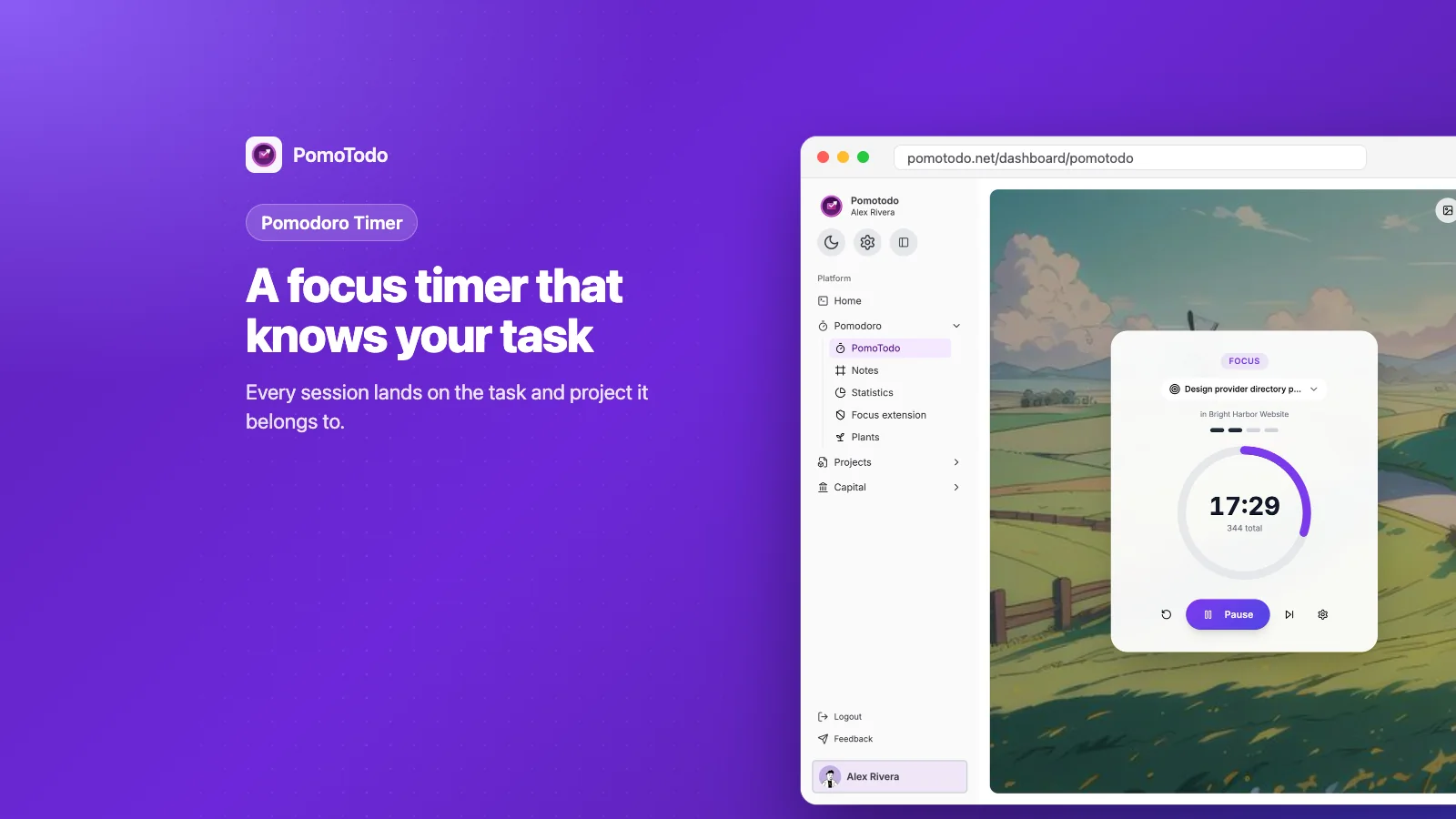
In your dashboard sidebar, open Pomodoro and click PomoTodo. The timer sits on a calm background, with a checklist and a focus playlist next to it.
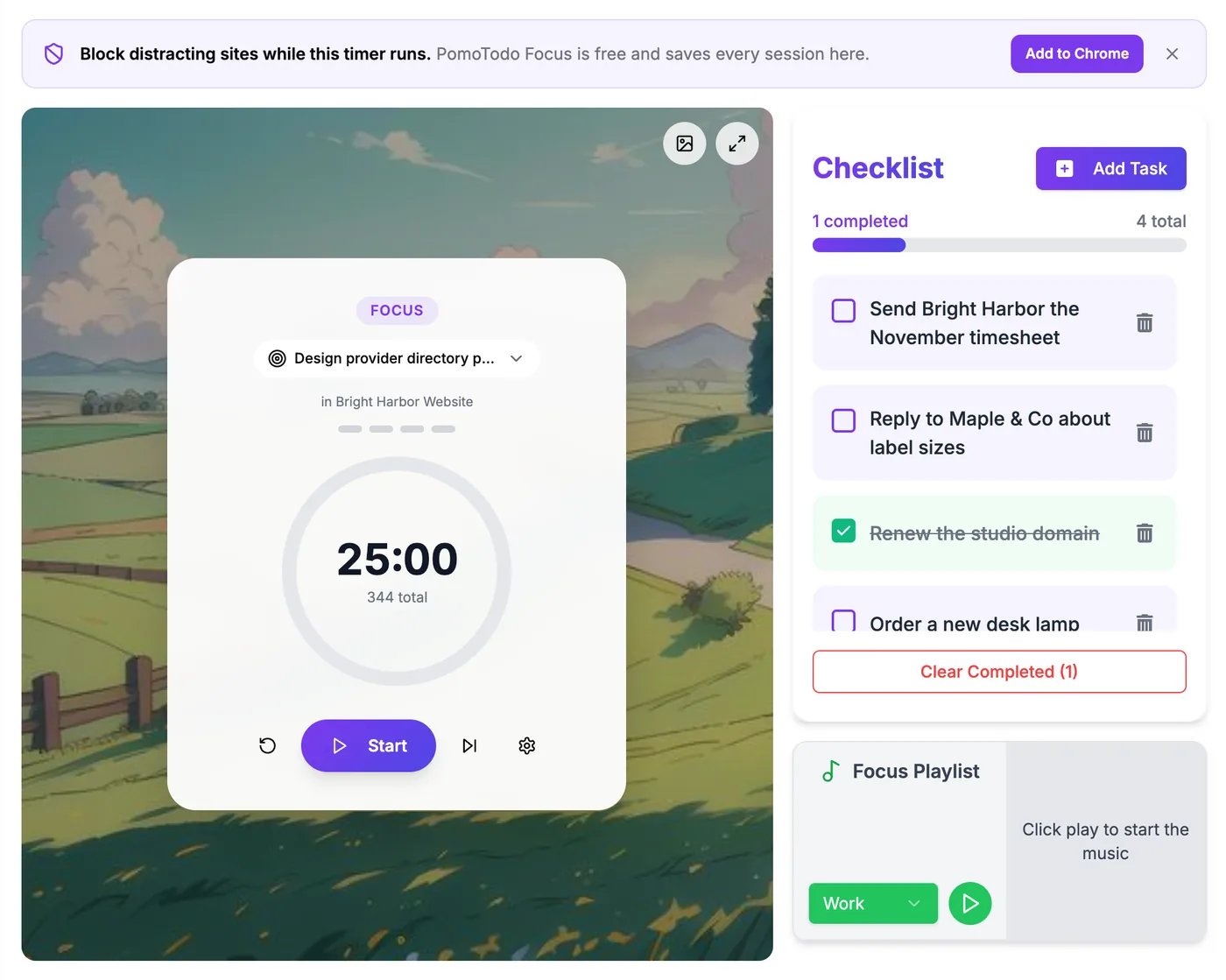
The timer, your checklist and some music, all on one page. The banner at the top offers the free site blocker.
How to use the timer in 5 steps
Step 1: Pick the task you are about to do
Above the clock there's a small button with a target icon. Click it, search for a task from any of your projects, and pick it.
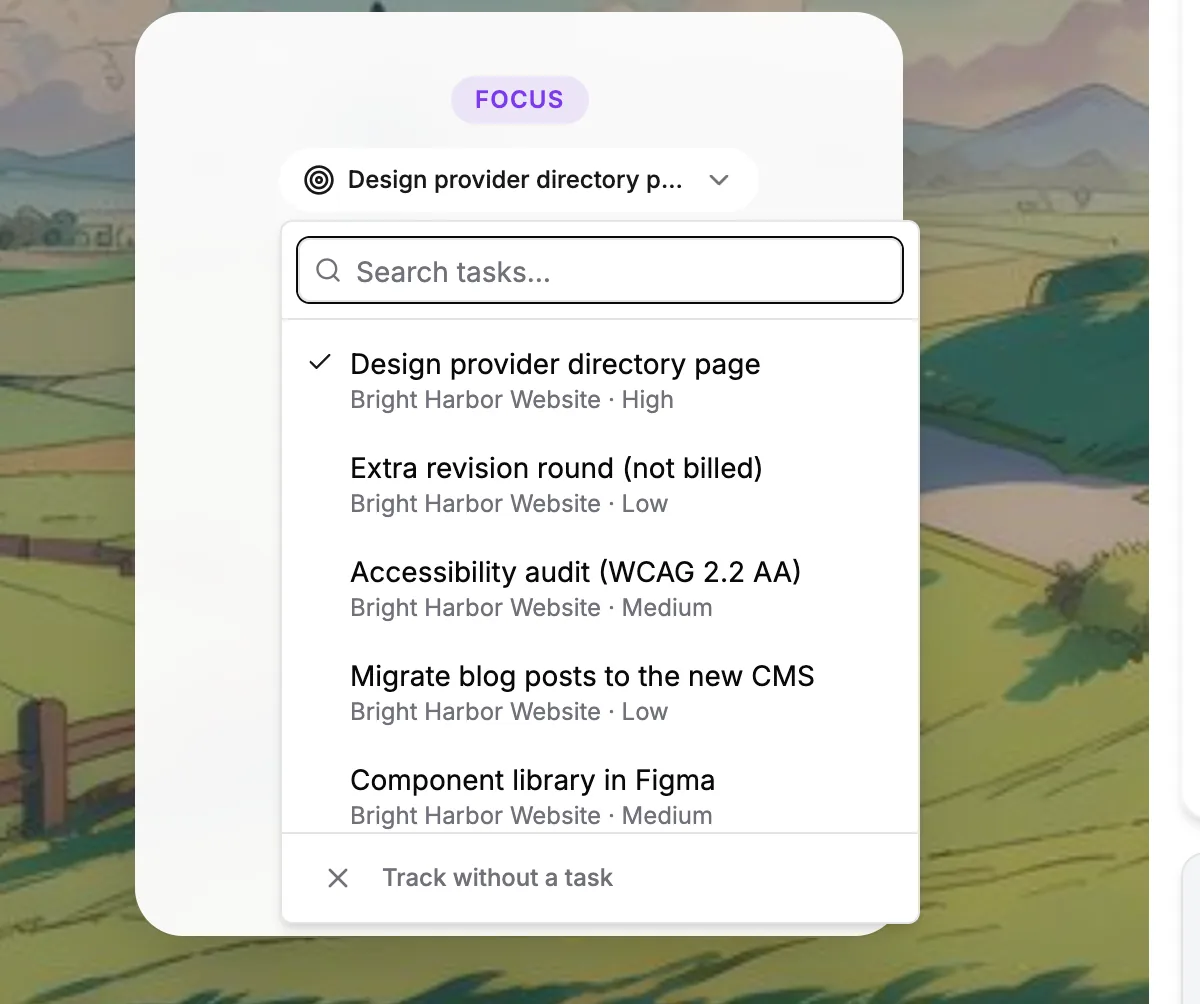
Search tasks across every project. Or choose "Track without a task" if you just want to focus.
This step is optional, but it's the clever part. When you pick a task, each finished session is saved to that task and its project. That's how your hours end up on the right project, and later on your timesheet, without you writing anything down.
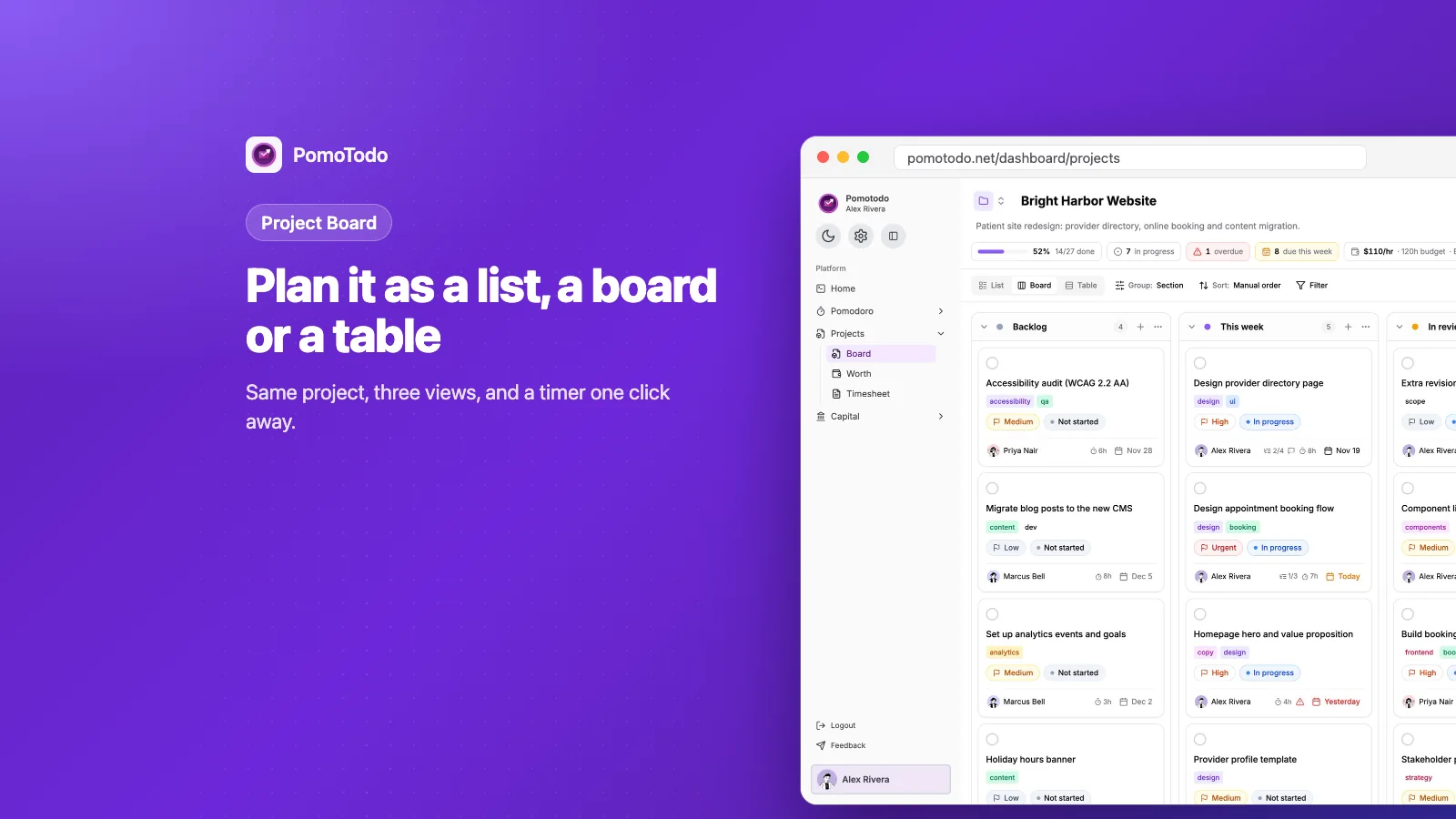
You can also start from the other direction. Open any task on the project board and press "Focus on this". The timer opens with that task already chosen.

Every task shows its estimate in Pomodoros, and "Focus on this" starts the timer on it.
It really helps that every task tells you its size in Pomodoros. "8 hours" feels like a mountain. "About 19 Pomodoros" feels like something you can chip away at, one at a time.
Step 2: Set your focus and break times
Click the gear icon under the clock. You'll see the three lengths, in minutes.
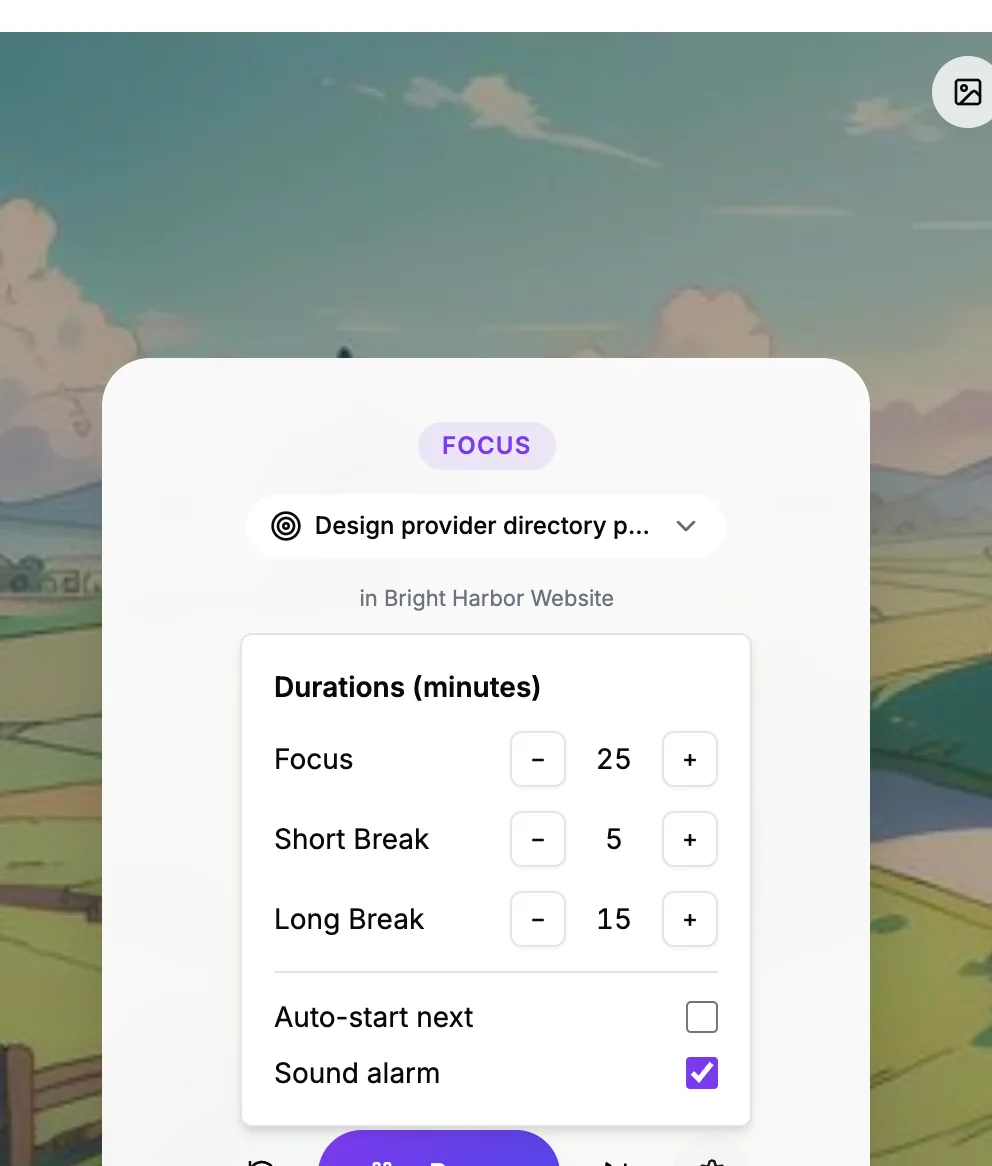
The classic is 25, 5 and 15. Change them with the plus and minus buttons.
- Focus starts at 25 minutes.
- Short break starts at 5 minutes.
- Long break starts at 15 minutes, and comes after every fourth focus session.
There are two switches below. One starts the next round by itself, so you don't have to click after every break. The other plays a sound when time is up. A nice place to start is sound on and auto start off, so you choose when to dive back in.
Step 3: Press start and give it your full attention
Press Start. The ring fills up as the minutes pass, and the browser tab shows the countdown too, so you can glance at it from another window.
For those 25 minutes, do only the task you picked. If a random thought pops up ("I should reply to that email"), drop it in the checklist next to the timer and get back to work. You'll deal with it on the break.
Refresh the page by accident? No problem. The timer keeps the right time.
Step 4: Take the break, for real
When the focus time ends, the break starts. Stand up, get some water, look out of a window. Breaks aren't wasted time. They are what make the next 25 minutes good.
After four focus sessions you get the long break. Take it. Your brain earned it.
Step 5: Repeat, and know what skipping does
Keep going, one round at a time. If you need to stop a focus session early, you can skip to the break, but that session won't be counted. It's a small rule that keeps your stats honest.
Make it yours
The timer should feel like a nice place to sit, not a stopwatch in a spreadsheet.
- Backgrounds. Pick from a few calm scenes with the picture button in the corner. If you like a pretty setup, we wrote a whole post on the aesthetic Pomodoro timer.
- Fullscreen. One click hides everything except the timer and the background.
- Focus playlist. Choose Work, Study, Motivate or Relax and press play.
- Checklist. A tiny to do list right next to the timer for small things that aren't worth a whole task.
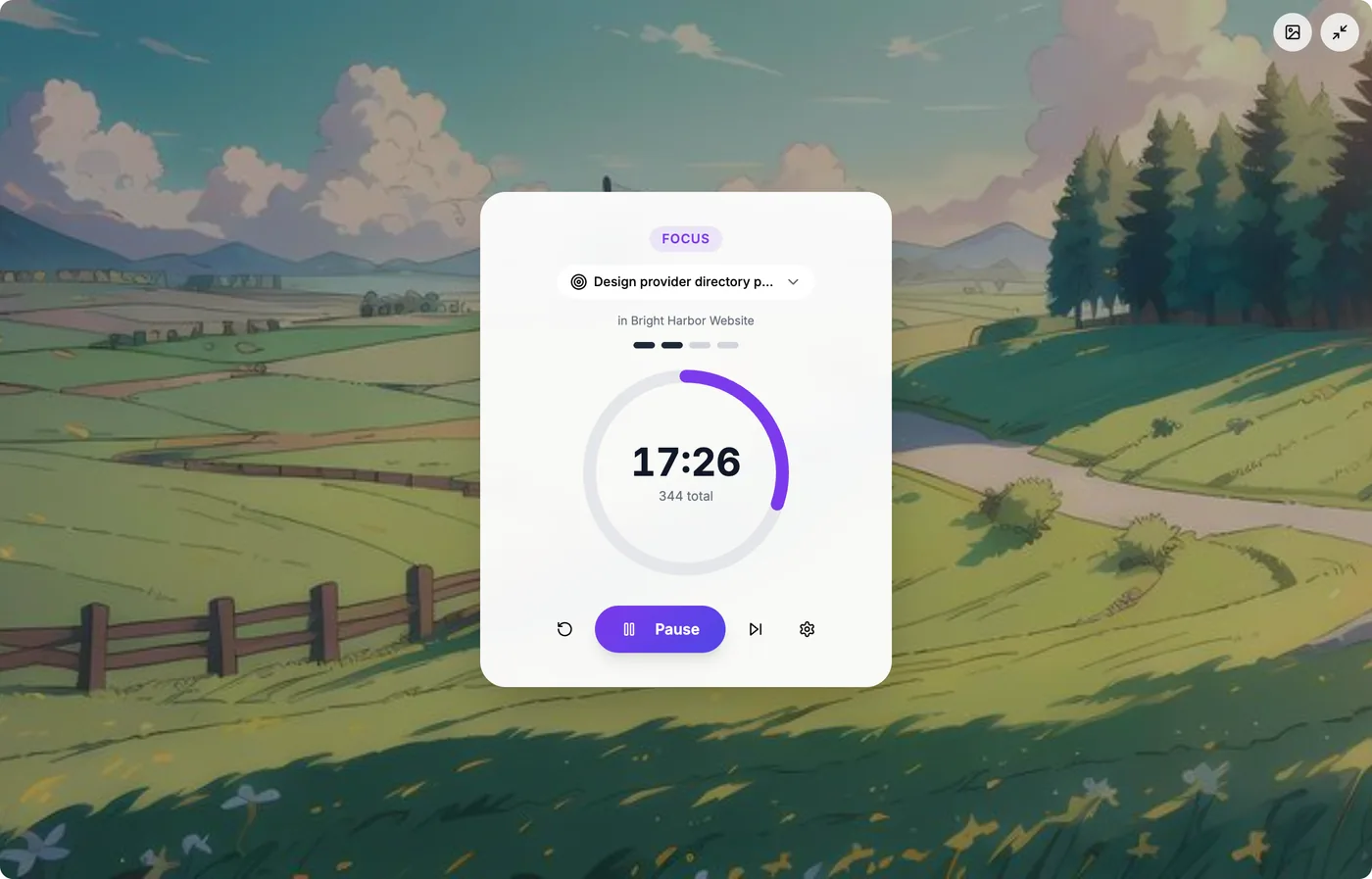
Fullscreen mode. Just you, the clock and the hills.
Every session lands in the right place
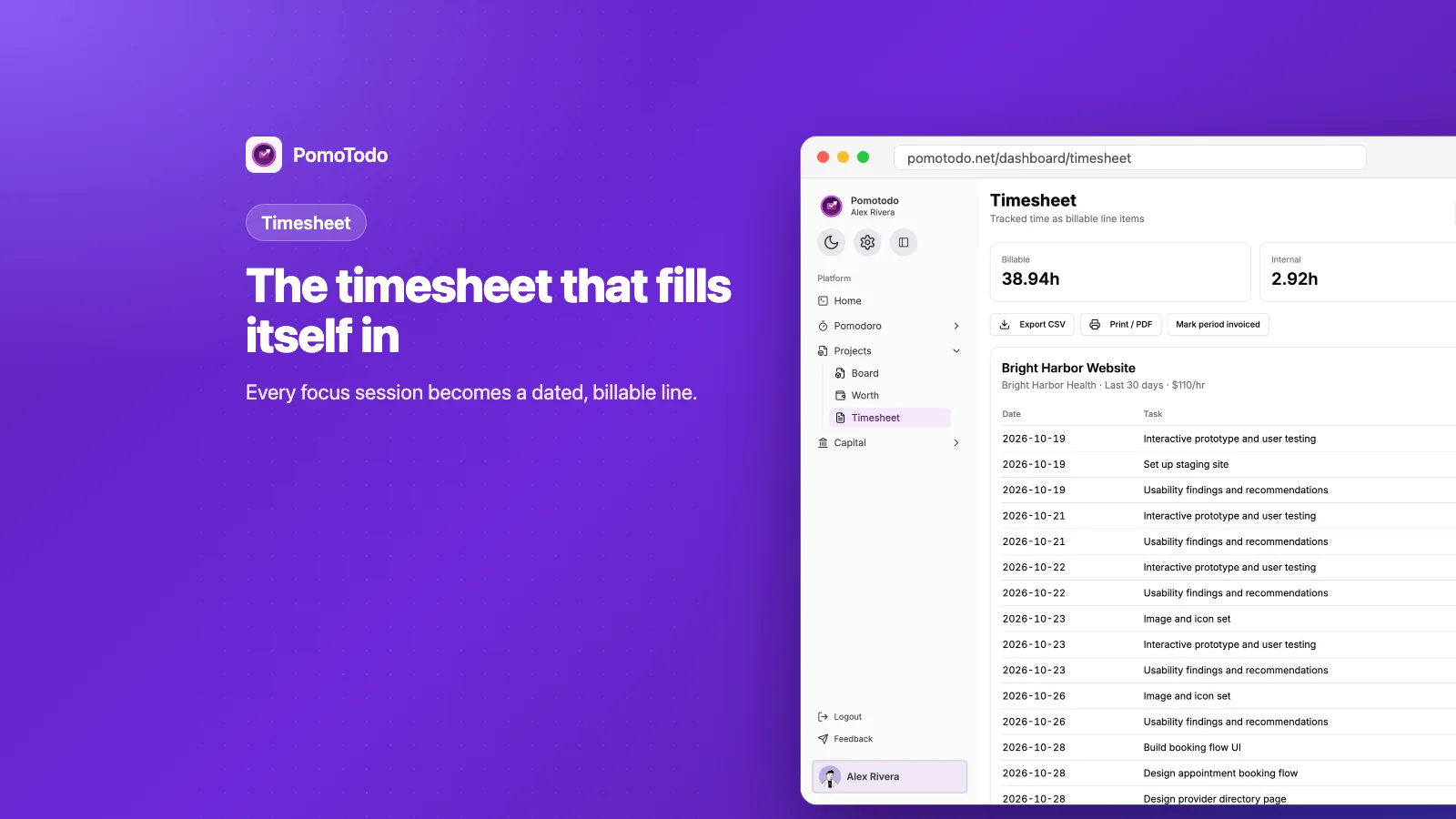
This is what makes the PomoTodo timer different from a plain kitchen timer. Because you picked a task, each session knows which task and which project it belongs to.
That means you can see how long a task really took compared to your estimate. And if you work for clients, those sessions turn into billable lines on your timesheet automatically. Our guide on how to track billable hours shows that part step by step.
See your focus patterns
Open Statistics under Pomodoro to see how your focus is going.
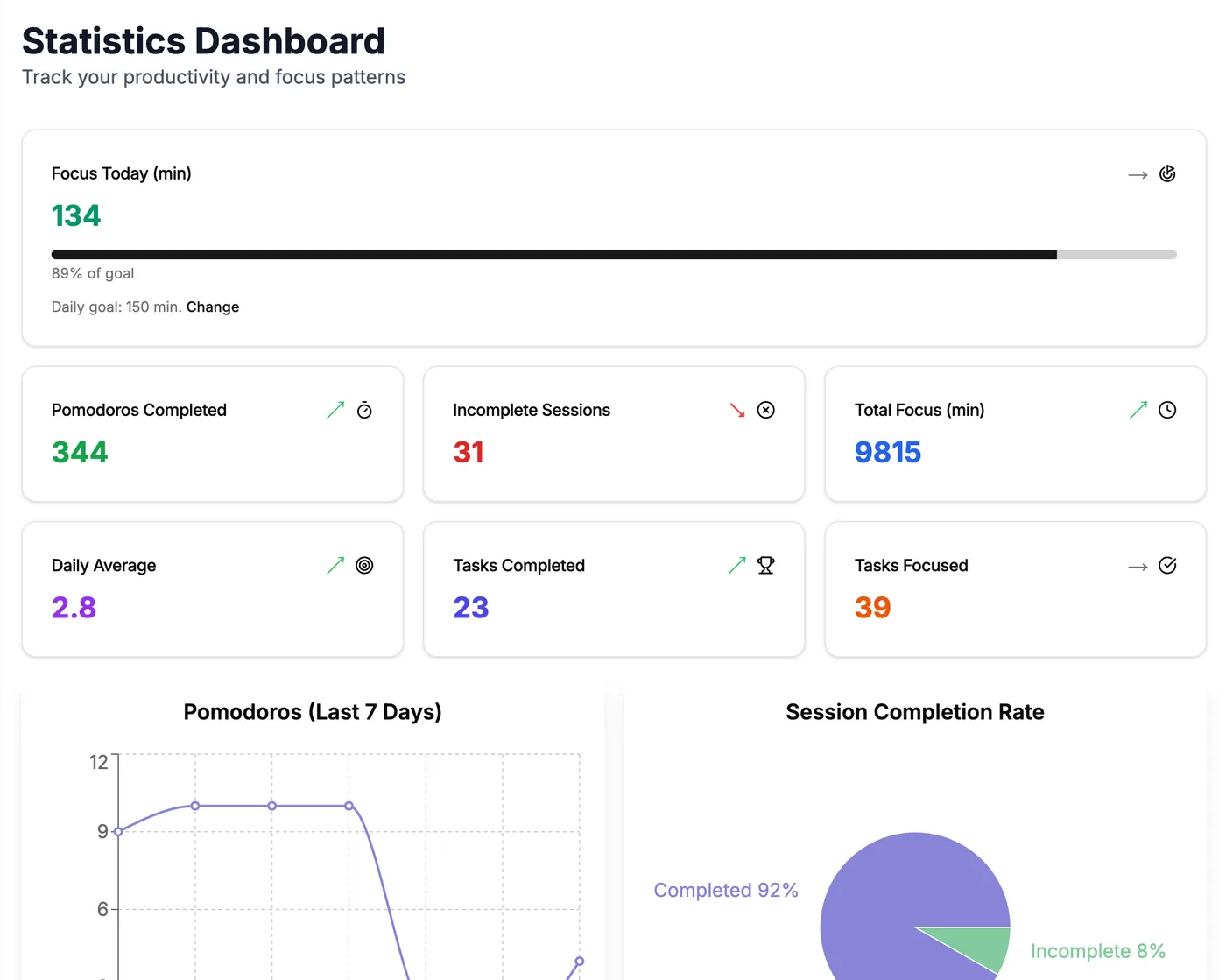
Today's focus against your daily goal, plus your totals and the last seven days.
You get your focus minutes today against a daily goal you choose, the Pomodoros you have completed, sessions you did not finish, total focus minutes, your daily average, and charts for the last seven days. The completion rate is a fun one to watch. It shows how often you finish the sessions you start.
Grow a garden while you work
Every finished Pomodoro counts toward a new plant. Your first plant (a little succulent) arrives after just 5 sessions.
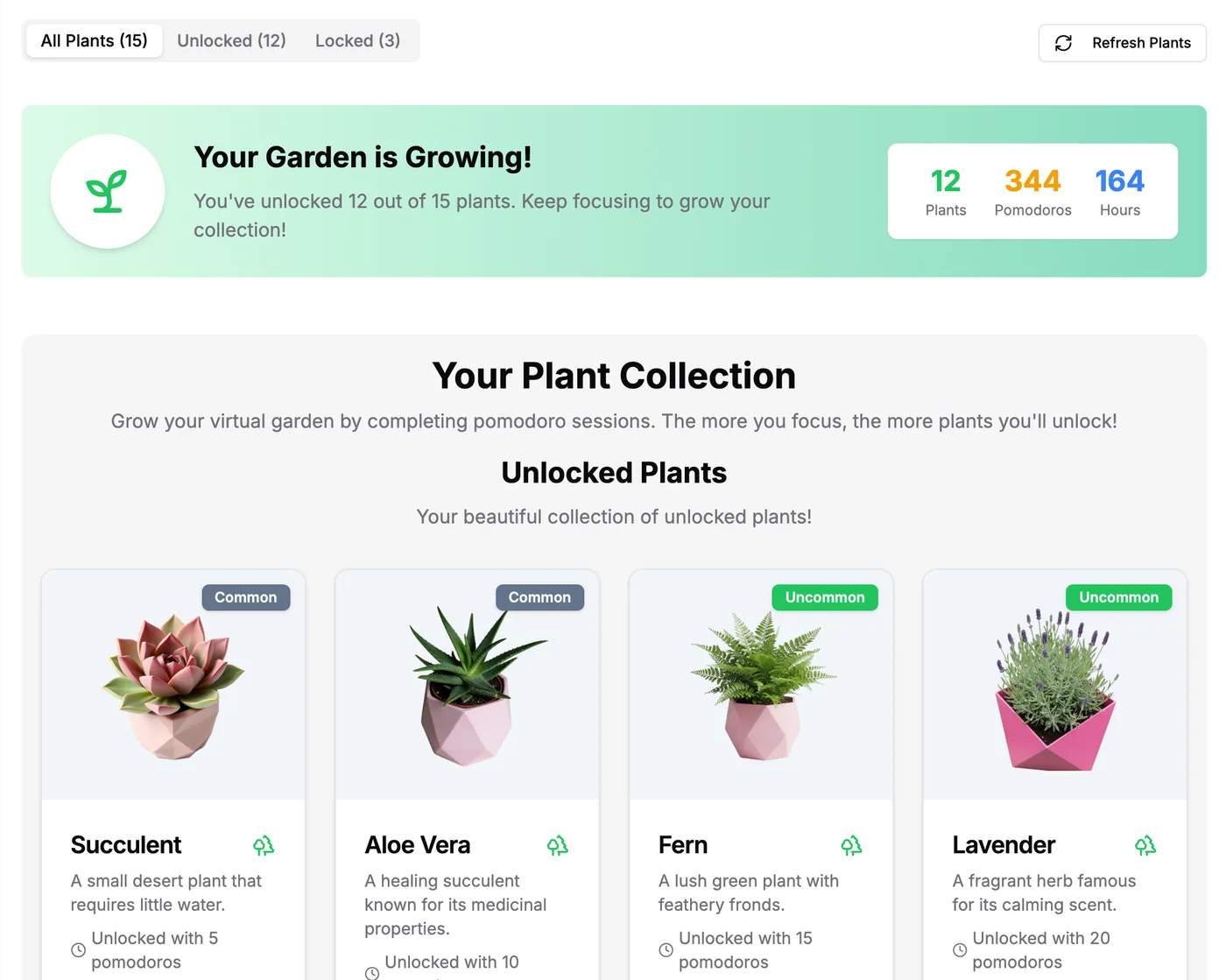
There are 15 plants to collect. The rarest one takes 1,000 Pomodoros.
There are 15 plants across eight rarities, from common to celestial. It sounds silly. It's silly. And it's surprisingly hard to stop at 14. Kids tend to love this sort of thing, and it can make homework sessions feel like a game.
Block distracting sites while the timer runs
If your weak spot is "just checking" social media, try PomoTodo Focus. It's a free Chrome extension that blocks the sites you choose while a focus session is running. Its sessions show up in your PomoTodo stats too.
You can read more about it on the free website blocker for Chrome page.
Different timers for different brains
25 and 5 is the classic, but it isn't the only way. We built free timers for different kinds of work, and they all run without an account:
- The classic 25 and 5 Pomodoro timer.
- A Pomodoro timer for studying, made for revision days.
- A gentler Pomodoro timer for ADHD with shorter blocks.
- A Pomodoro timer for coding with longer focus blocks.
- The 52 and 17 timer for long, deep work stretches.
- And Animedoro, where your break is one episode.
Is it free?
Yes. The timer, your statistics, the checklist, the music and the plant garden are all free, with unlimited sessions. Pro adds deeper focus insights and your full history, but you can focus every day without it.
FAQs
How do I use a Pomodoro timer?
Pick one task, set the timer for 25 minutes and work only on that task until it rings. Take a 5 minute break, then repeat. After four rounds, take a longer break of 15 to 30 minutes.
How long is one Pomodoro?
The classic Pomodoro is 25 minutes of focus followed by a 5 minute break. In PomoTodo you can change both lengths, plus the long break, from the timer settings.
Can I use the PomoTodo timer for studying?
Yes. Make a project with the Study plan template, add your topics as tasks, and pick a topic before each session. Your stats and the plant garden make it easy to see how much you studied.
What happens if I skip a Pomodoro?
If you skip during focus time, you go straight to the break and that session isn't counted in your stats. Skipping a break just starts the next focus round.
Do I need an account to use a Pomodoro timer?
No. You can use the Pomodoro timer without an account any time. An account adds the task picker, statistics, the garden and the link to your projects.
One Pomodoro is enough to start
You don't need a perfect system. Pick one task, press start, and give it 25 honest minutes. Then do it again.
If you want your timer and your tasks to work together, the Pomodoro timer with tasks page explains how they connect.