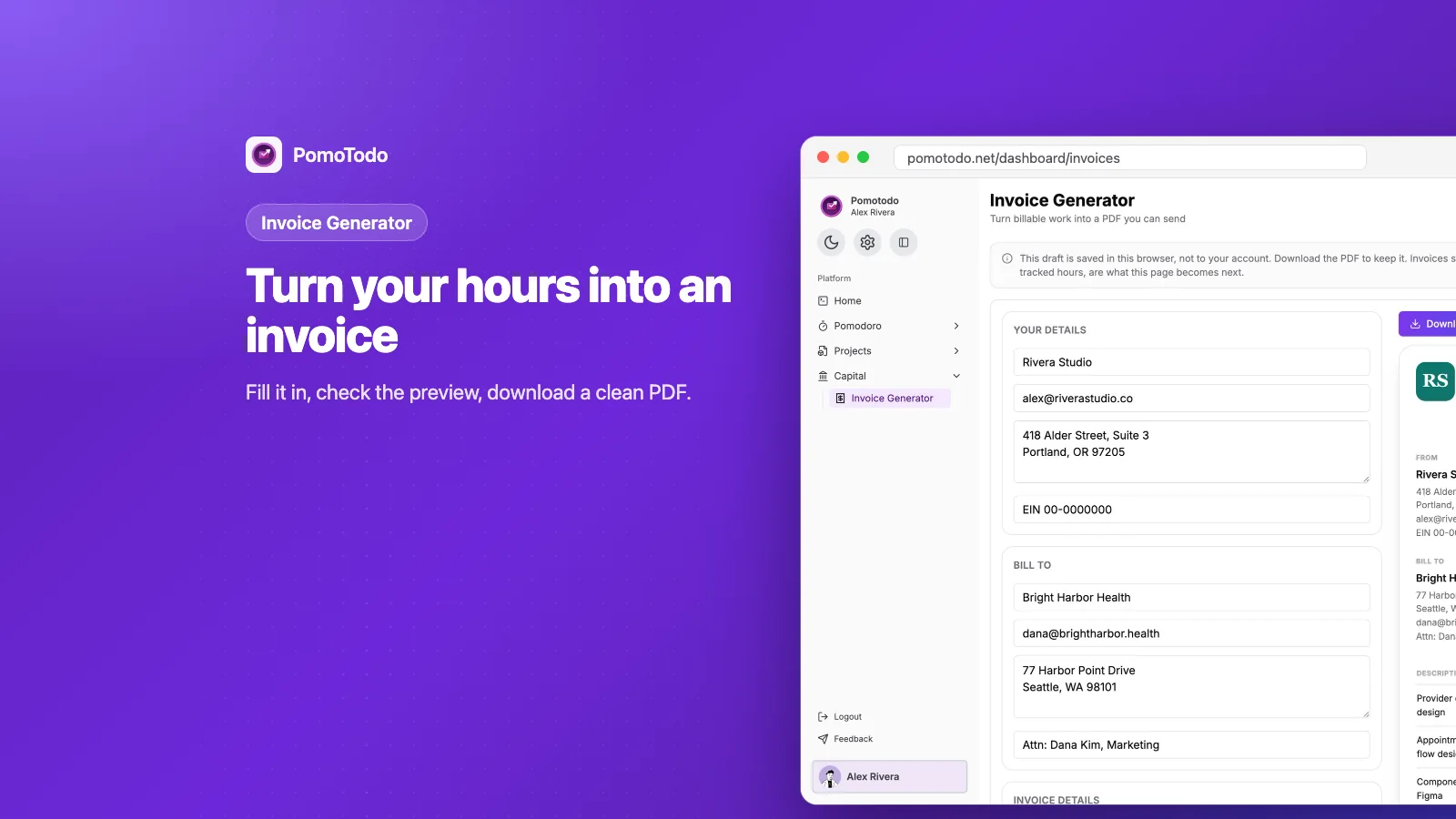

The short version
- An invoice is a bill. It says who did the work, who pays, what was done, how much it costs and how to pay.
- In PomoTodo you make one under Capital, then Invoice Generator. You fill in a form on the left and watch the invoice build itself on the right.
- When it looks right, you download a clean PDF and send it. It's free, and the hours you tracked are one click away on your timesheet.
A lot of first invoices start life as a Word document. The total is wrong, the date is left over from the template, and nobody remembers to say how to get paid. The client is usually nice about it. You are usually not so nice to yourself.
An invoice should not be that stressful. It's just a tidy page that says "here's what I did, here's what it costs, here's how to pay". This post shows you exactly how to make one in PomoTodo, step by step, with pictures of every part.
What is an invoice, in plain words?
An invoice is a bill you send after you finish some work. It asks the client to pay you a certain amount by a certain date.
That's it. A good invoice is clear enough that the person paying it never has to email you a question. Every part of it exists to answer one of those questions before they ask.
What goes on an invoice
Here's what every invoice should have. Keep this list handy:
- Your details. Your name or business name, email and address. Freelancers in the US often add an EIN or tax ID here.
- Your client's details. Who you're billing, and who should read it.
- An invoice number. A unique number so both of you can find it later.
- Dates. When you sent it and when it's due.
- Line items. Each piece of work, how many hours or units, the rate and the amount.
- The total. Including any tax or discount.
- How to pay. Bank details, ACH, Zelle, whatever you accept. And a thank you never hurts.
The PomoTodo invoice generator has a box for every one of these, so you can't forget a piece.
Where to find the invoice generator in PomoTodo
Open your dashboard and look at the sidebar. Under Capital you'll find Invoice Generator. It lives next to your projects on purpose, because the hours you bill come from there.
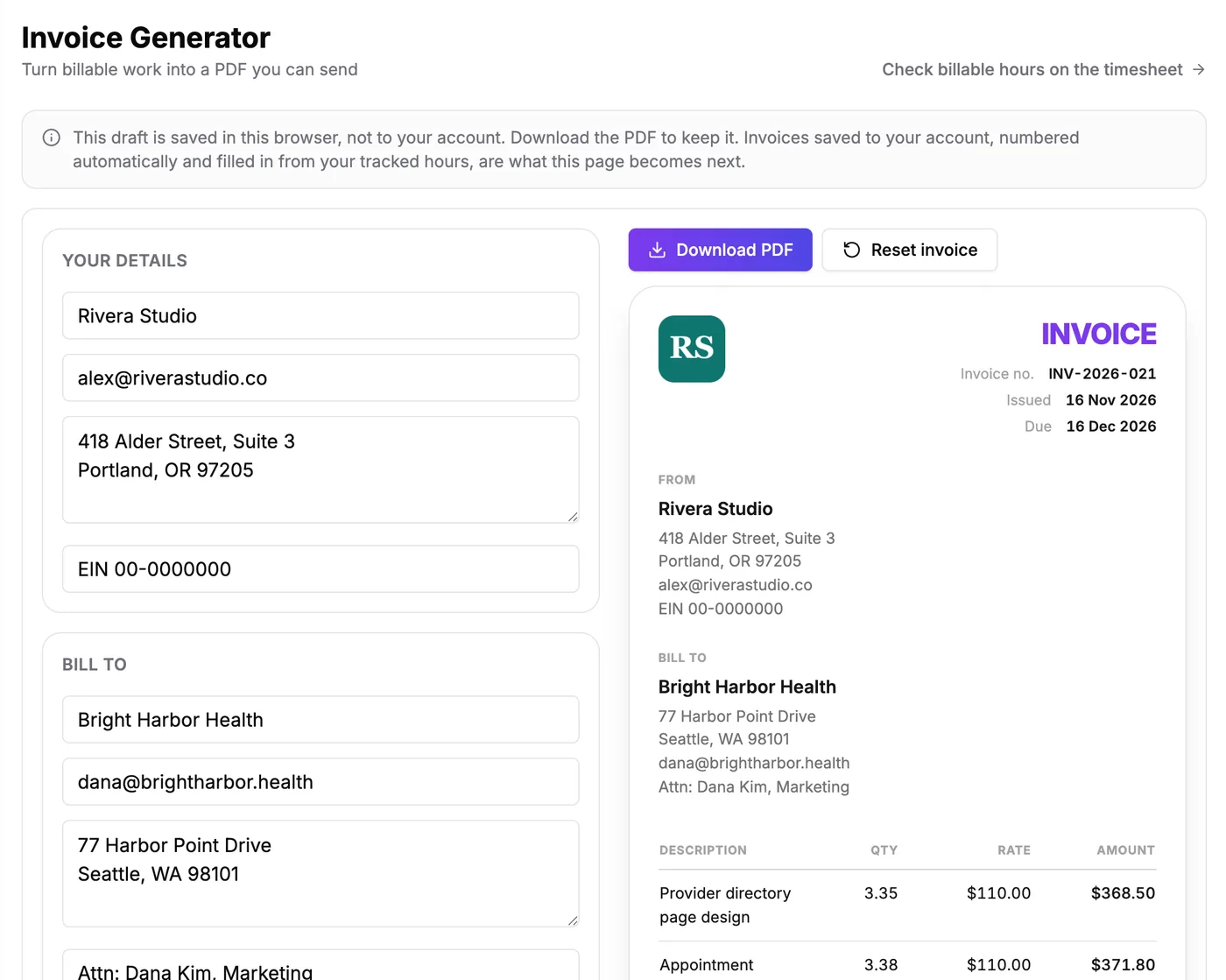
The form is on the left and the finished invoice is on the right. Every change shows up in the preview as you type.
There's a link at the top that says "Check billable hours on the timesheet". Keep that in mind, we will use it in step 4.
How to make an invoice in 6 steps
Step 1: Add your details and your client's
Start with the two boxes at the top. "Your details" is you. "Bill to" is the person or company paying.
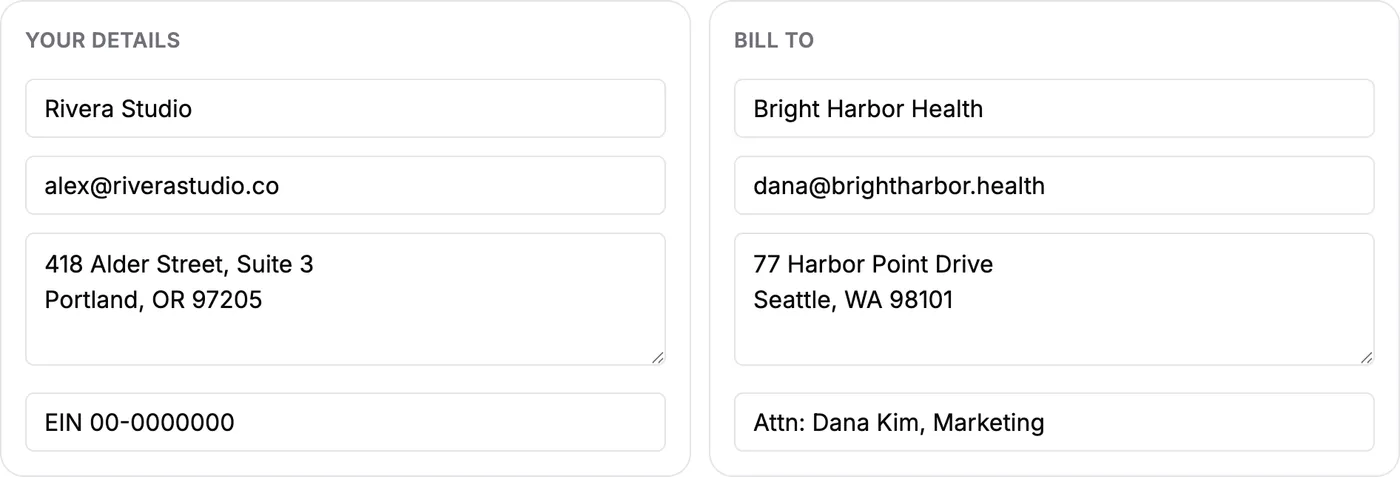
Your business on the left, your client on the right. The last line in each box is for extras like an EIN or "Attn: Dana Kim".
A small tip. Use the last line in the client box for the name of the person who approves payments. "Attn: Dana Kim, Marketing" gets an invoice to the right desk much faster than a company name alone.
Step 2: Set the invoice number, currency and payment terms
Next is the "Invoice details" box. This is where the invoice gets its number and its dates.
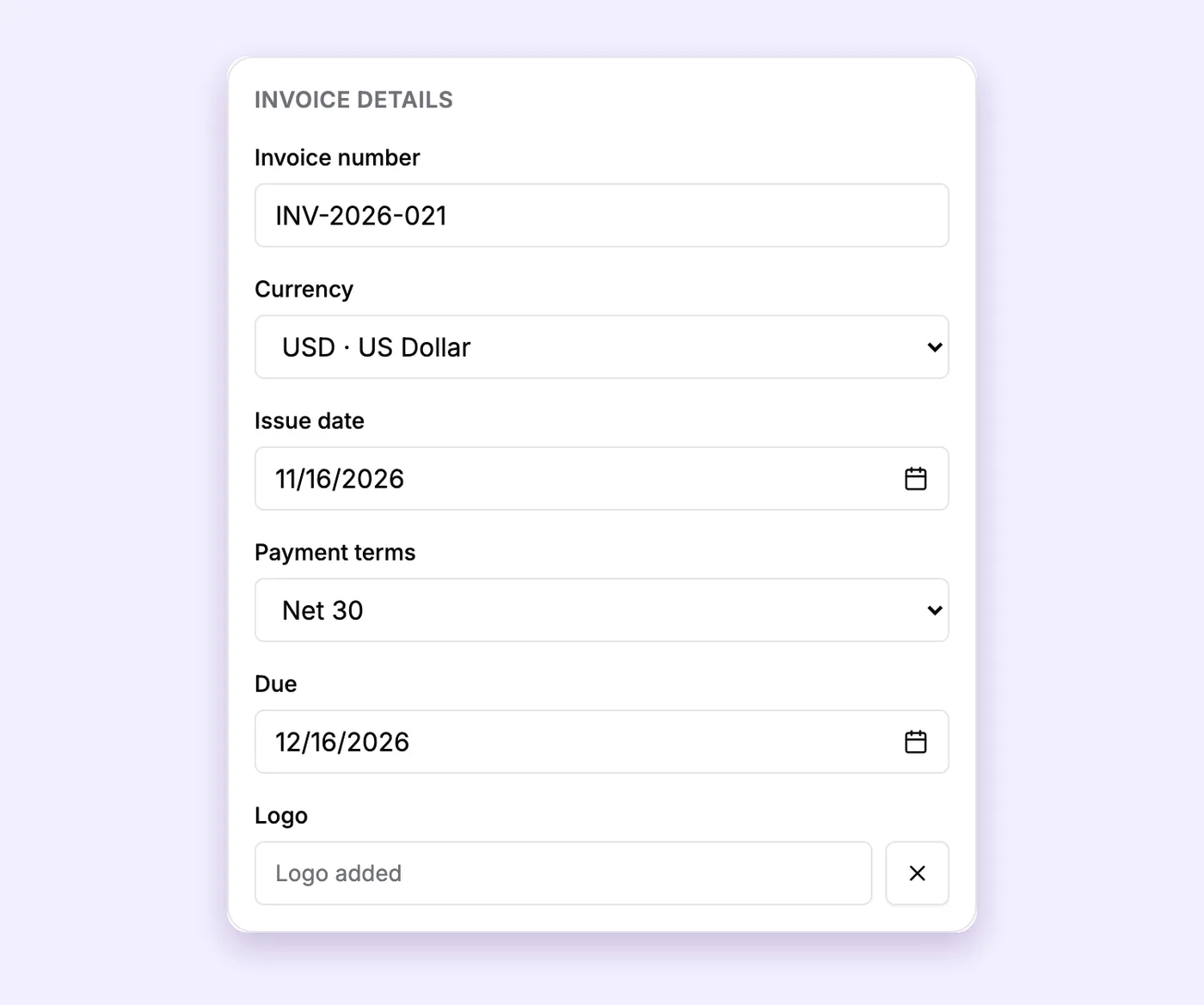
Pick your payment terms and the due date fills itself in.
The invoice number starts as something like INV-2026-001. Change it to whatever comes next for you. The only rule is that you never use the same number twice.
The currency list covers twelve currencies, from US dollars to euros, pounds and rupees, so you can bill a client abroad too.
Then pick your payment terms. These tell the client how long they have to pay:
- Due on receipt means please pay now.
- Net 15 means within 15 days.
- Net 30 means within 30 days. This is the most common one in the US, and it's what PomoTodo starts with.
- Net 45 and Net 60 give bigger clients more time.
When you pick a term, the due date updates by itself. You can also choose Custom and set any date you like.
Step 3: Add your logo
This one is optional, but it makes the invoice look like it came from a real business (because it did). Upload an image in the Logo field and it appears at the top of the invoice and the PDF.
Step 4: Add your line items
Line items are the heart of the invoice. Each one is a piece of work with a description, a quantity, a rate and an amount. The amount does the math for you.
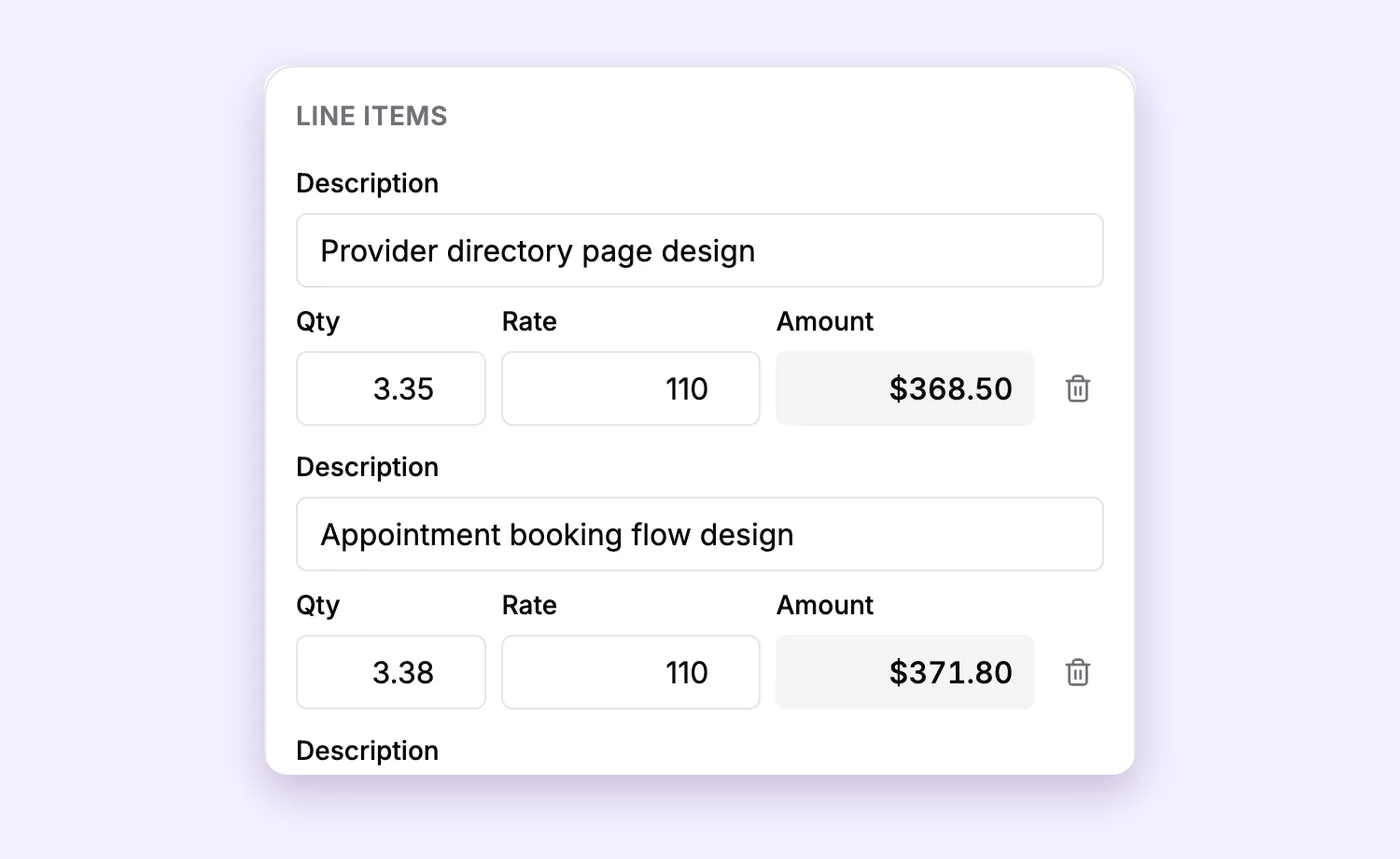
Describe the work, enter the hours and your rate. The amount appears on its own.
If you bill by the hour, the quantity is your hours. This is where the timesheet saves you. Open it from the link at the top of the page and every billable hour you tracked is already there, by date and by task. Our guide on how to track billable hours shows how that list builds itself.
Hours on a timesheet are written as decimals, so 25 minutes is 0.42 hours. If you ever need to convert some by hand, the minutes to decimal hours chart makes it quick.
Write descriptions a client can understand without calling you. "Appointment booking flow design" is great. "Misc work" is how invoices get questioned.
Step 5: Add tax or a discount if you need one
Below the line items is the "Tax & discount" box. You can name the tax (like "Sales tax"), set a rate, and add a discount as a percentage or a fixed amount.
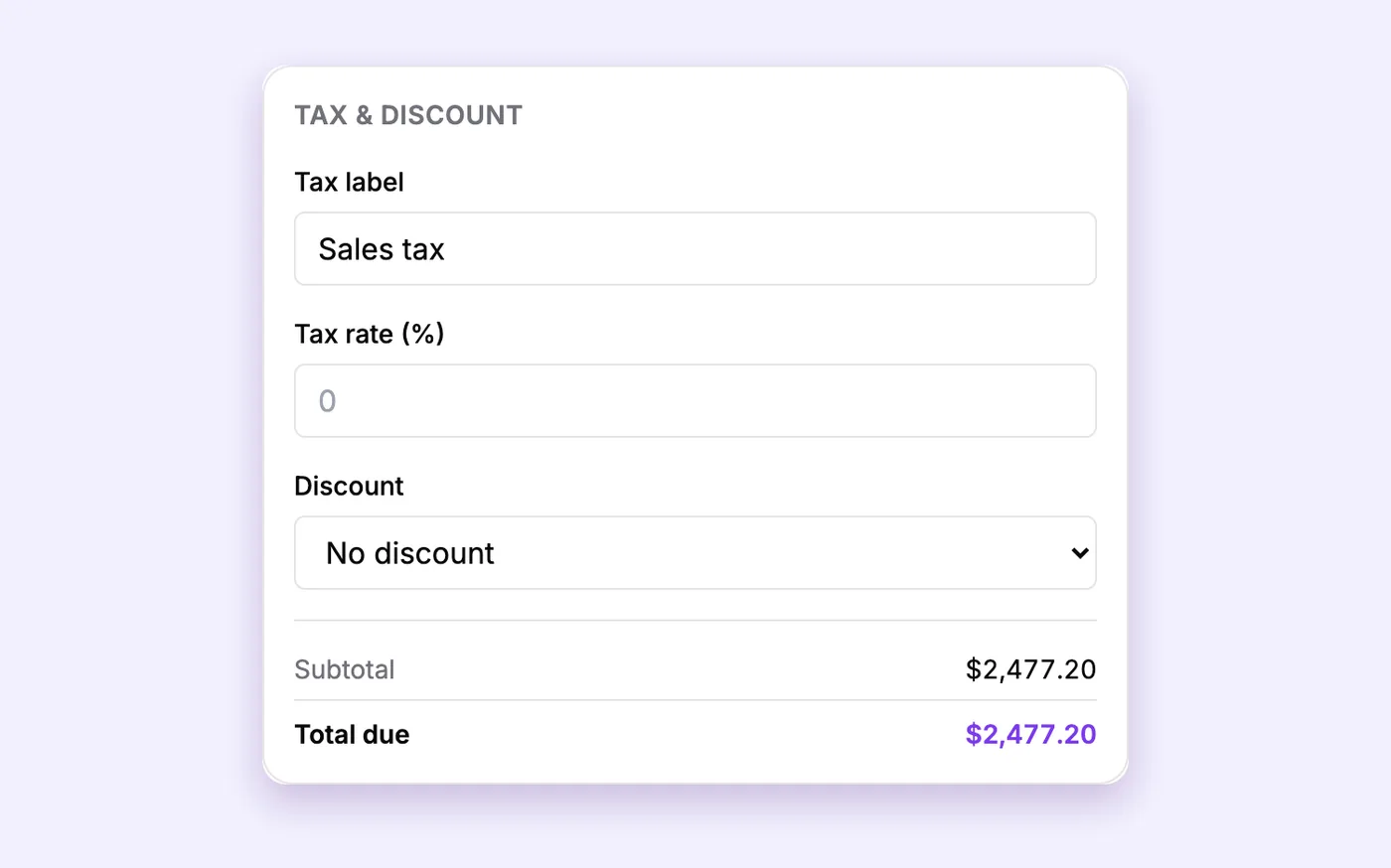
Leave the tax at 0 if your work isn't taxed. The subtotal and total update as you go.
In a lot of US states, most services aren't taxed, but some are. If you aren't sure about yours, check your state's website or ask an accountant. And while you're thinking about taxes, the self employment tax calculator shows how much of each payment to set aside.
Step 6: Add payment notes and download the PDF
The last box is for notes. Put your payment details here: bank name, account, routing number, or "pay by Zelle to this email". A short thank you is nice too.
Then press Download PDF. You get a clean, simple invoice like this one.
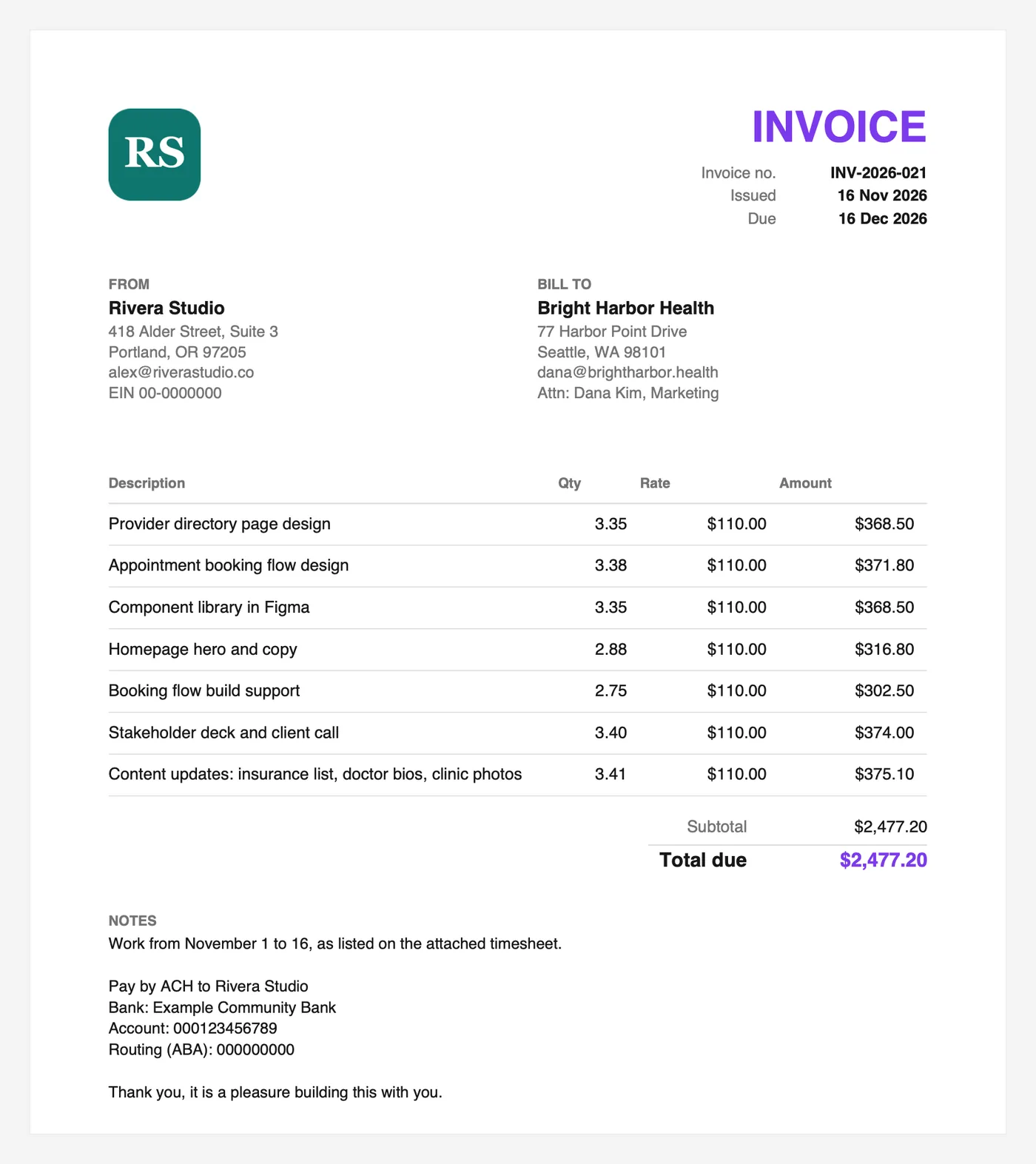
The PDF your client gets. Everything they need to pay you, and nothing they need to ask about.
One important thing to know. Your invoice draft is saved in your browser, not to your account. So download the PDF to keep a copy of every invoice you send. The page reminds you of this too.
A few habits that get invoices paid faster
None of these are hard. They just help.
- Send it the day the work ends. Fresh work gets paid faster than old work.
- Number invoices in order. It makes your records easy to follow, for you and for tax time.
- Match the hours to the timesheet. If a client asks, you can send the timesheet with the same numbers.
- Say the due date out loud. "Due December 16" in your email is clearer than "Net 30" alone.
- Follow up kindly. A short note on the due date is normal. Most late invoices are just forgotten, not ignored.
Where the numbers come from
The invoice generator works best with the rest of the dashboard. Your focus sessions land on tasks on the project board. Those sessions become lines on your timesheet. You copy the hours into the invoice, send it, and then mark that period as invoiced on the timesheet so the same hours never get billed twice.
Want to know if the rate on that invoice was actually a good deal? The Worth report shows what each project really paid you per hour.
Need a quote first, or just one quick invoice?
Some clients want a price before you start. The quote generator makes a quote with optional add ons and a deposit, and turns it into an invoice when the job is done.
And if you only need a single invoice and don't want an account at all, you can use the invoice generator without signing up.
There are also ready made invoice templates for different trades, from cleaners to electricians.
Is it free?
Yes. Making invoices and downloading the PDF is free, with or without an account. Exporting your timesheet and marking periods as invoiced are part of Pro, which is $12 a month or $99 a year.
FAQs
How do I make an invoice for free?
Open the PomoTodo invoice generator, fill in your details, your client's details, the invoice number, dates and line items, then download the PDF. There's no charge and no watermark.
What does Net 30 mean on an invoice?
Net 30 means the client has 30 days from the invoice date to pay the full amount. Net 15 means 15 days, and "due on receipt" means right away.
What should my first invoice number be?
Any number works as long as you never reuse it. Many freelancers start with something like INV-2026-001 and count up from there.
Do I need to add sales tax to my invoice?
It depends on where you live and what you sell. Many US states don't tax most services, but some do. Check with your state or an accountant, then set the tax rate in the "Tax & discount" box if you need it.
Is my invoice saved in PomoTodo?
The draft is saved in the browser you used, not in your account. Download the PDF to keep a permanent copy of every invoice you send.
You are ready to send it
That's the whole thing. Six boxes, one button, and a PDF your client can pay without a single question.
If you bill clients every month, the free invoice generator for freelancers page explains how it fits with the timer and the timesheet. Give it a try with your next invoice.