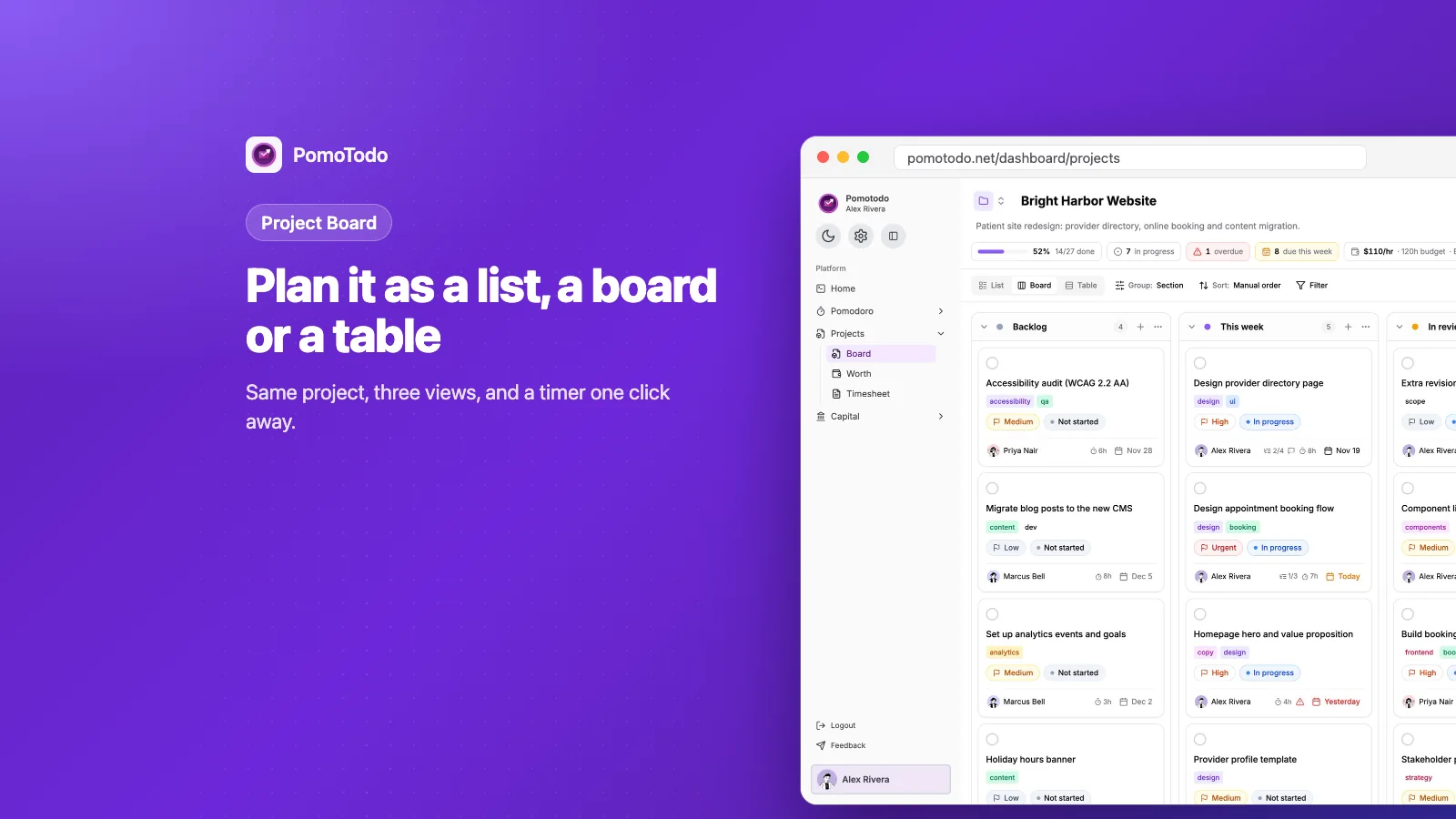

The short version
- The PomoTodo Project Board turns one project into a list, a kanban board or a table. Same tasks, you just pick how you want to look at them.
- Every task holds its owner, due date, priority, subtasks, comments and an estimate that shows up in hours and in Pomodoros.
- A button on each task starts the focus timer on it, so planning and doing happen in the same place.
- It's free. You can invite up to 3 teammates on the free plan, and Pro removes that limit.
Most task apps are great at one thing. They help you write down what needs doing. Then they leave you on your own the second you actually have to start.
Maybe you know the feeling. You plan a beautiful week in one app, open a timer in another tab, and track your hours in a spreadsheet nobody likes. Three tools for one job.
So we built the board to sit right next to the timer. This post walks through how it works, what each part is for, and the small details that make it fun to use. If you can use a sticky note, you can use this.
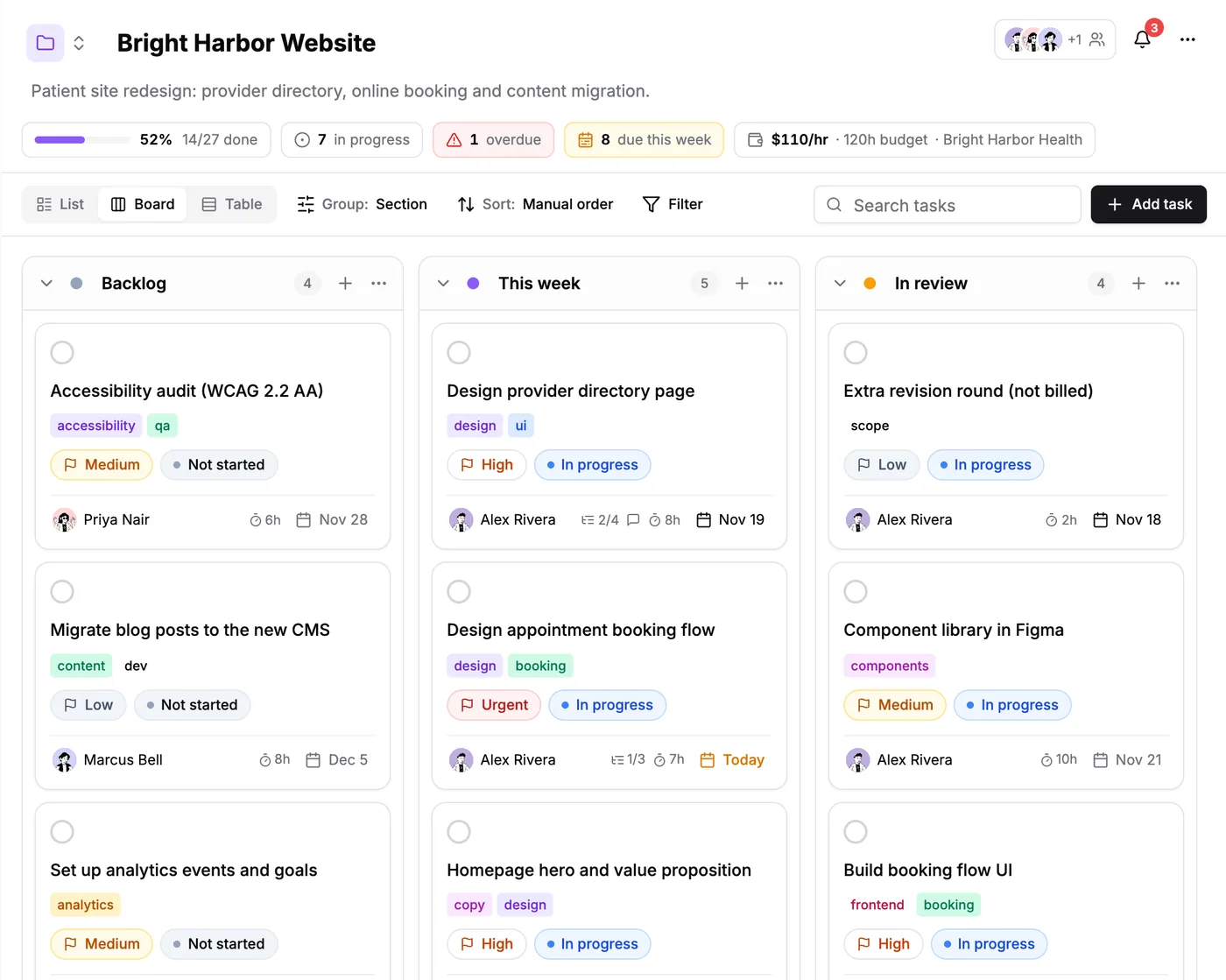
A client project in board view. Each card tells you what it is, who has it, how big it is and when it's due.
What is the PomoTodo Project Board?
Think of a project as a box. Inside the box are sections, like "Backlog" or "This week". Inside each section are tasks. That's really all there is to it.
The board shows that box in whatever shape helps you right now. Sometimes you want columns you can drag cards across. Sometimes you want a plain list. Sometimes you want a big sortable table. You never have to copy anything, because it's always the same project underneath.
If you only need a simple to do list, the task management side of PomoTodo is the lighter place to start. The board is for when the work has stages, people and deadlines.
One project, three views
At the top of every project there are three buttons: List, Board and Table. You can also press 1, 2 or 3 on your keyboard. Each project remembers the view you left it in.
Board view: columns you can drag cards across
This is the classic kanban layout. Each section becomes a column, each task becomes a card, and you drag a card to the right as the work moves forward.
The cards are small but they say a lot. You see the tags, the priority, the status, the person who owns it, how many subtasks are done, the estimate and the due date. A due date turns orange when it's today and red when it has passed, so the late stuff kind of jumps out at you.
If you want the longer story behind boards, our kanban board guide covers how to set up columns that actually work.
List view: the whole project, top to bottom
A board is great for seeing flow. It isn't great for reading forty tasks at once. That's what the list is for.
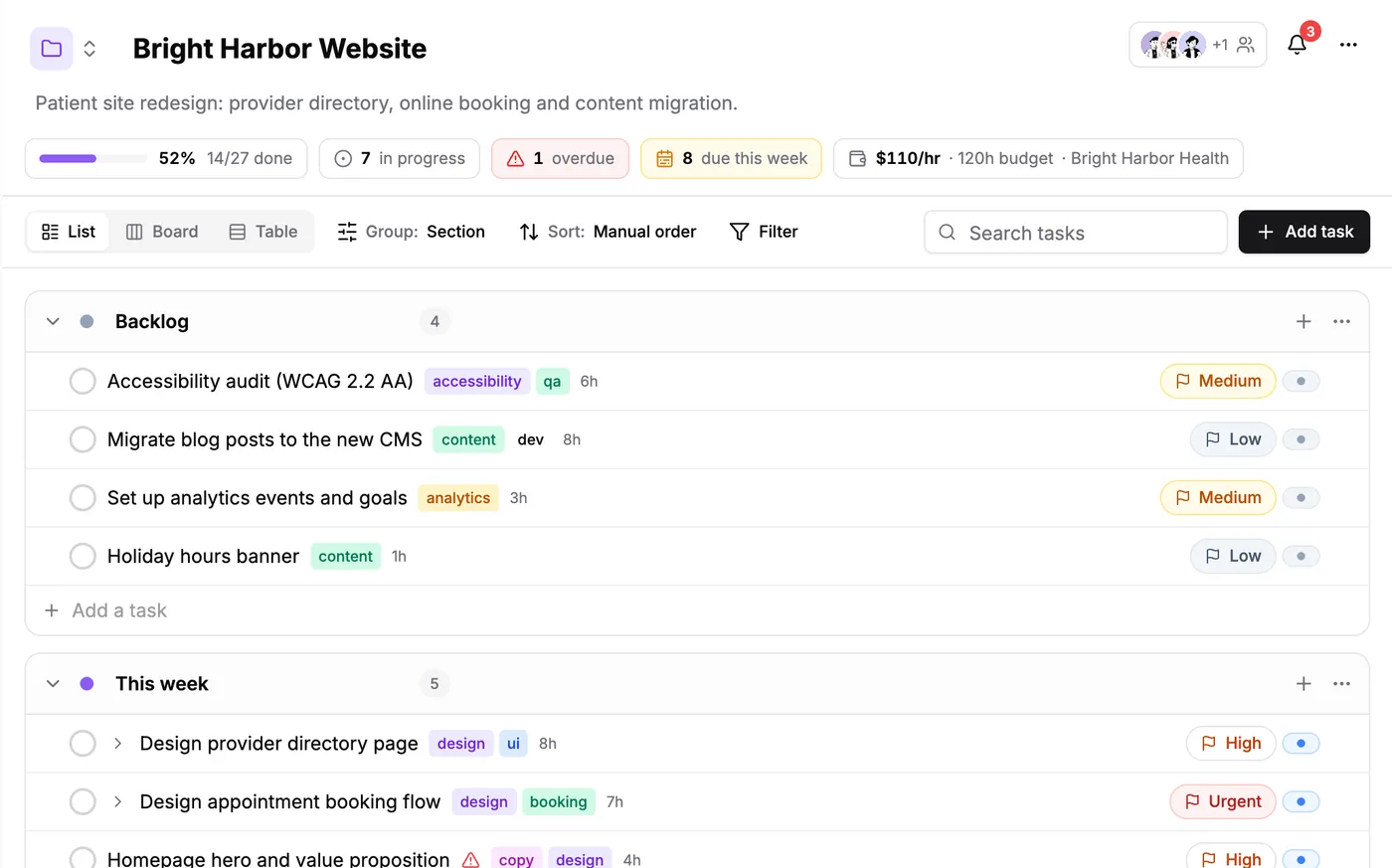
List view stacks the sections down the page. It's the best shape for planning a week, and it works really well on a phone.
Each section sits under the last one. Every task is a single line. At the bottom of each section there's an "Add a task" line, so you can type a bunch of tasks one after the other without opening a form each time.
Table view: sort everything like a spreadsheet
When you're reviewing rather than doing, the table is your friend. Every task becomes a row with columns for status, assignee, due date, priority, section, estimate, billing and tags.
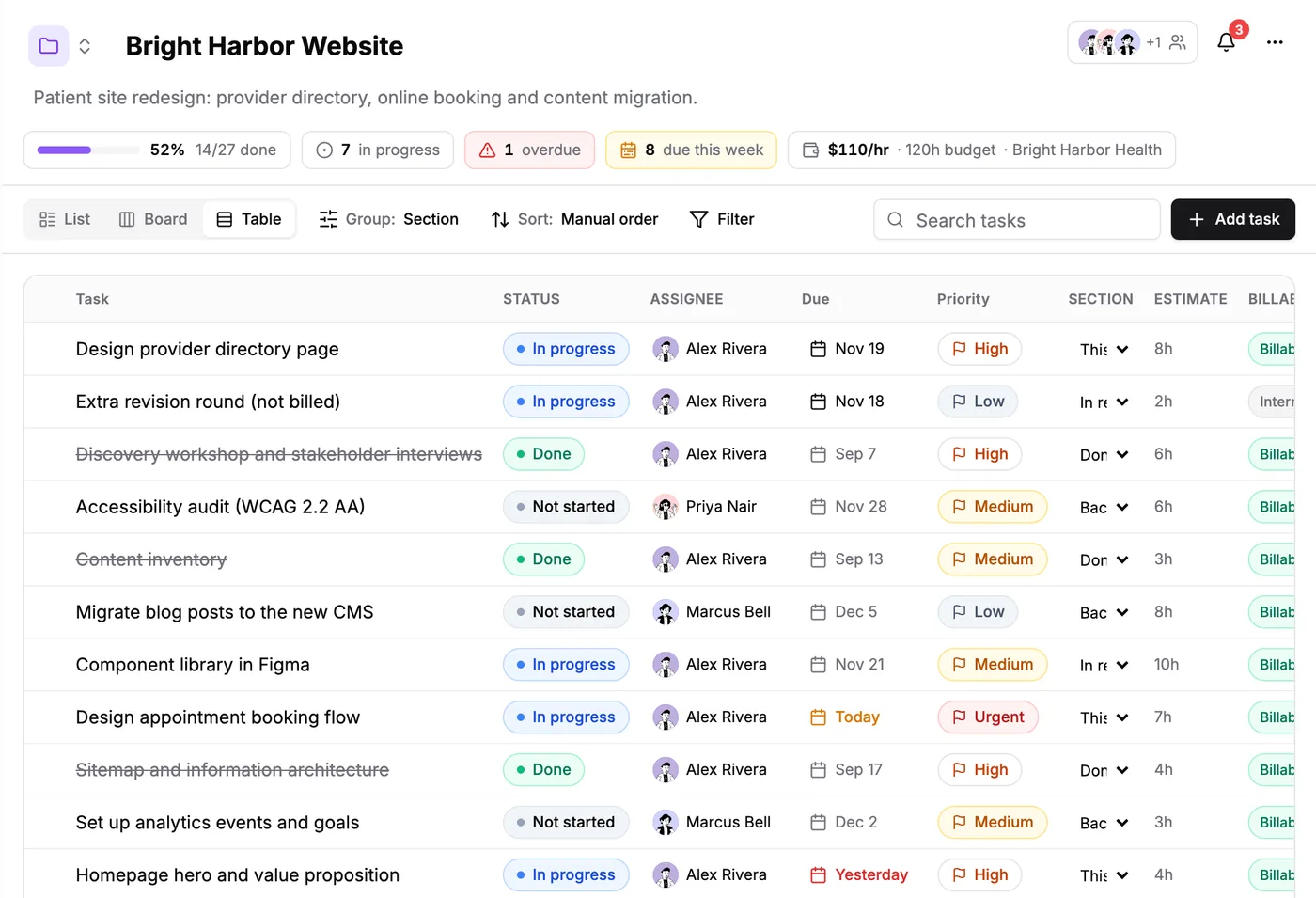
Table view. The cells are live, so you can change a status or a section right there in the grid.
It's perfect for a Friday afternoon check. Sort by due date, scan what slipped, fix it in the grid, done.
Group, sort and filter without moving anything
This is my favorite part. You can regroup the whole project in one click and nothing actually moves. Grouping only changes how you look at the work.
You can group by section, status, priority, assignee or due date. Group by assignee and suddenly every person gets their own column. You can see at a glance that one person has seventeen tasks and another has four. That's a conversation you want to have early, not on deadline day.
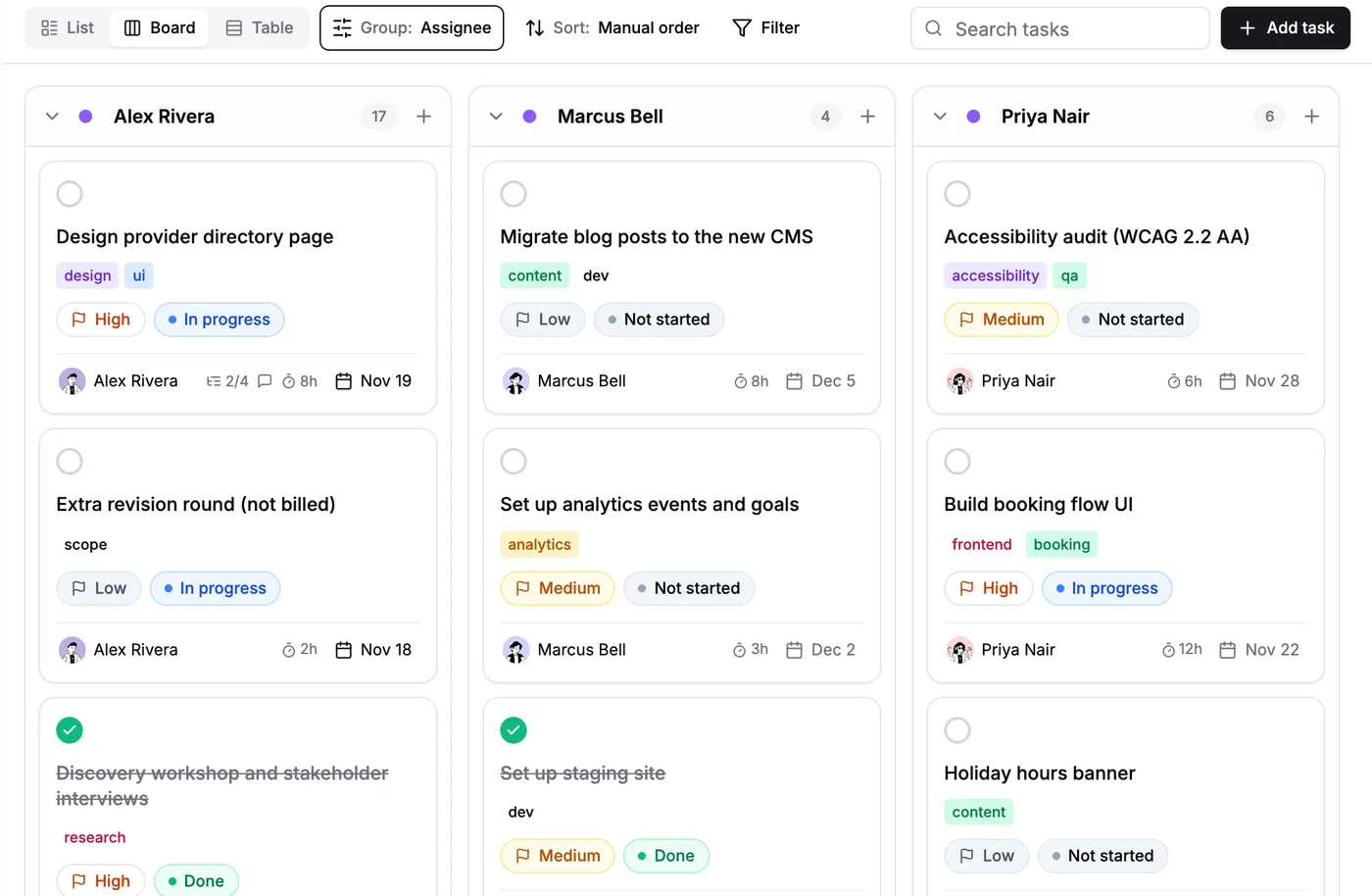
Grouped by person. Same tasks as before, now sorted into who is doing what.
Sorting works the same way. Keep your own manual order, or sort by due date, priority, name or newest first.
Then there are filters. You can hide finished tasks, or show only certain statuses (not started, in progress, blocked, done), certain priorities, a due window like "overdue" or "next 7 days", certain people, or certain tags. Press the slash key and you jump straight into search.
The counters at the top of each project help too. They show how much is done, how many tasks are in progress, how many are overdue and how many are due this week. Click the overdue counter and the board filters itself down to just the late ones. Very handy on a Monday.
Every task carries its own story
Click any task and a panel slides open with everything about it. Nothing hides in a second menu.
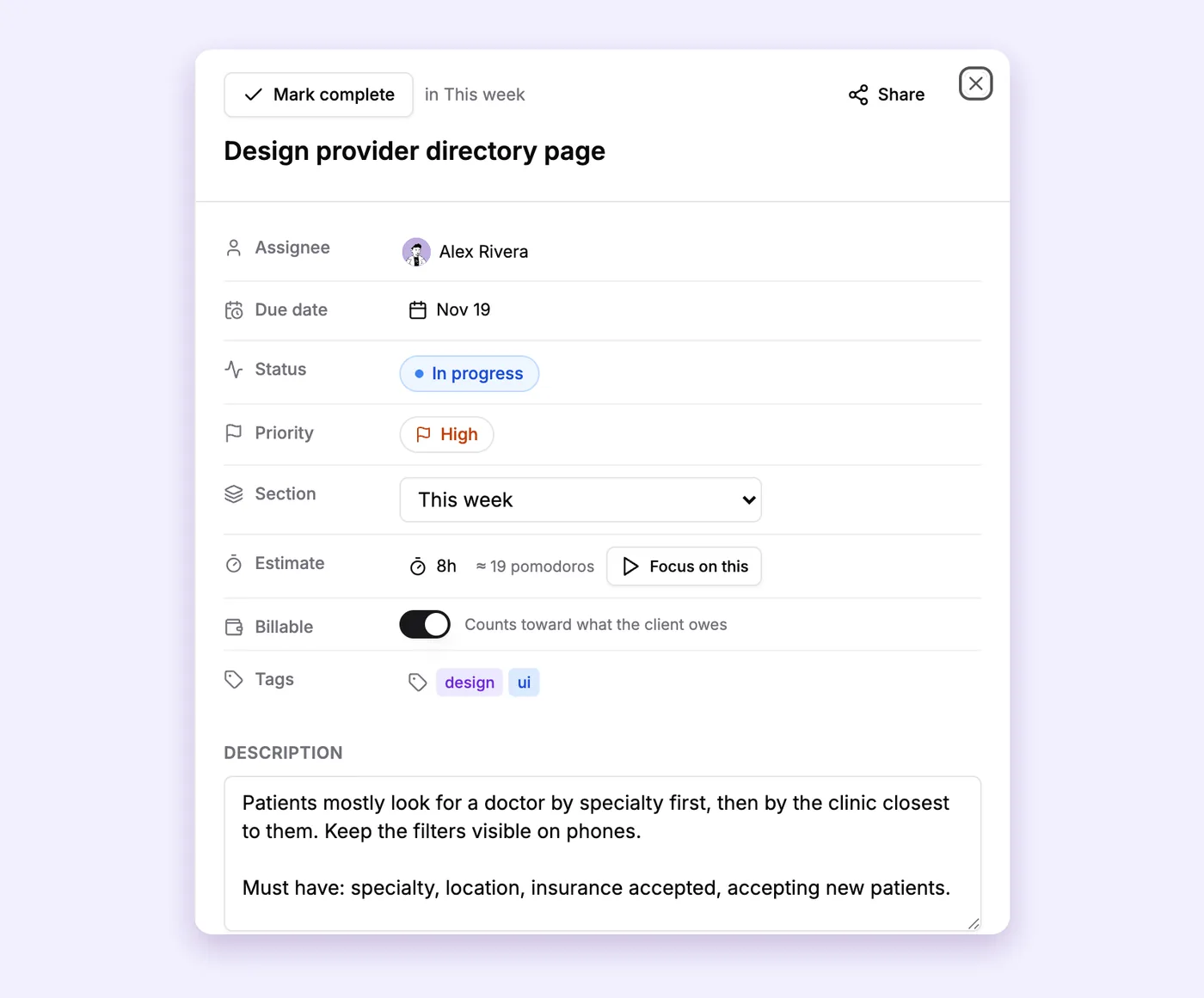
The task panel. Owner, dates, status, priority, estimate, billing and notes, all on one screen.
Here's what you can set on a task:
- Owner, due date, status and priority. The basics, each one a click away.
- Section. Move the task to another stage without dragging it.
- Estimate. Type how long you think it will take. The board also shows it in Pomodoros, so 8 hours shows up as about 19 focus sessions. That one detail keeps plans honest. A week that looks fine as a list of tasks can look very different once you see it's 60 Pomodoros long.
- Billable. On client projects there's a switch for work you can charge for. The guide to tracking billable hours explains how that flows into your timesheet.
- Tags and a description. For links, notes, and what "done" actually means.
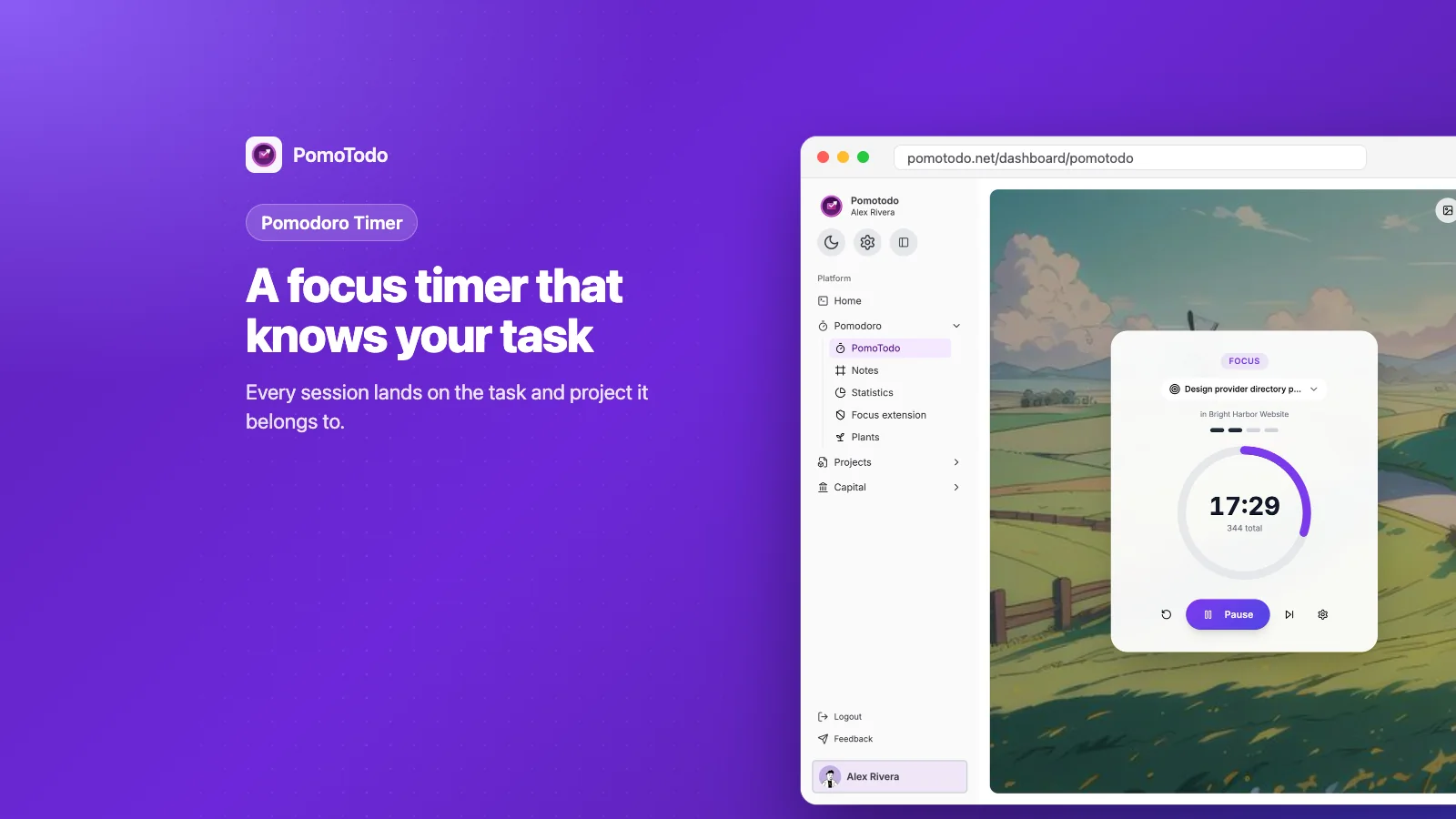
And then there's the "Focus on this" button next to the estimate. Click it and the PomoTodo Pomodoro timer opens with that task already picked. Every minute you focus gets saved against the task. No copying, no "which task was I on again".
Further down the panel you get subtasks and comments.
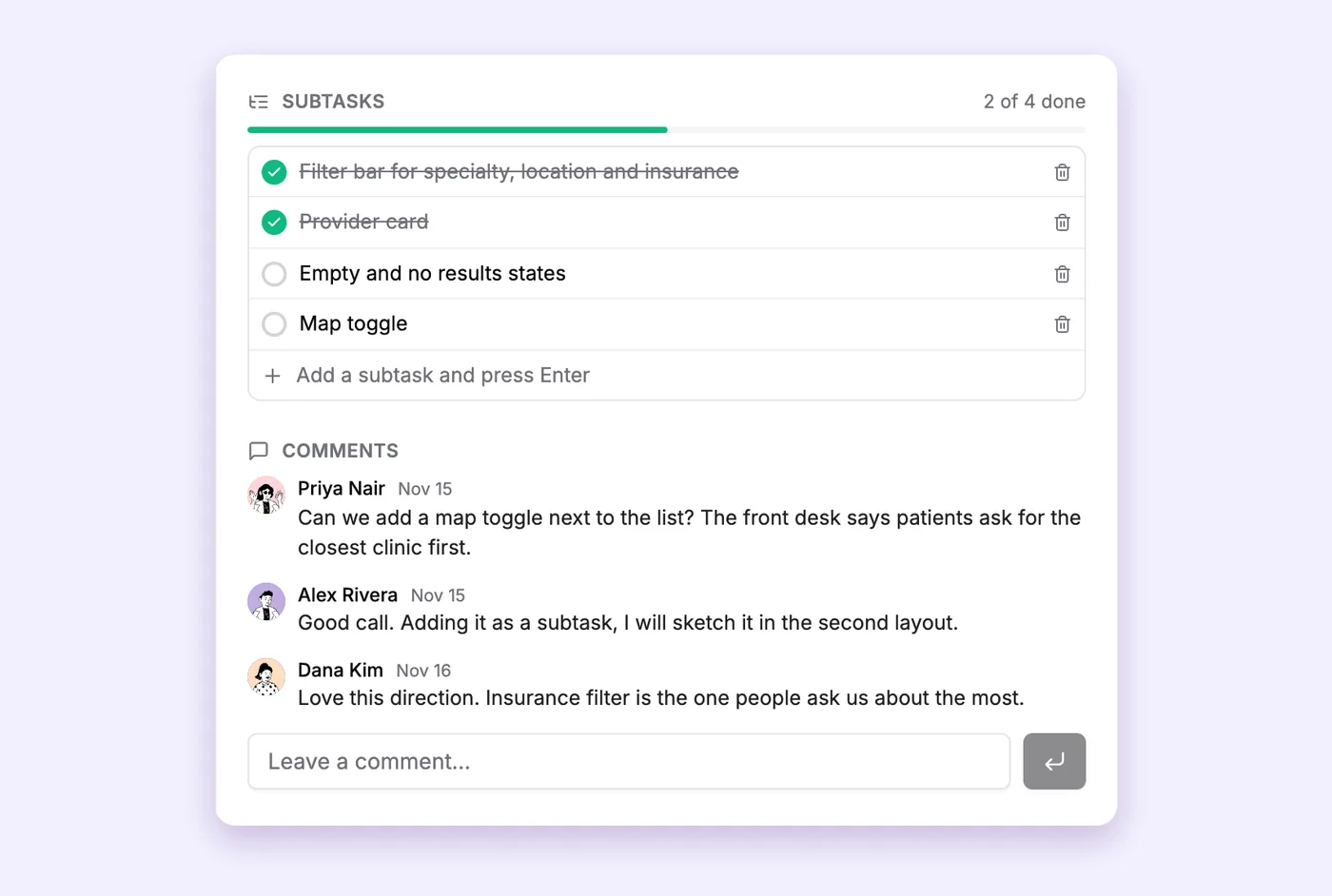
Subtasks fill a progress bar as you tick them off. Comments keep the conversation on the task instead of lost in chat.
Subtasks are great for breaking a scary task into small steps. Comments are where your team (or your client) can ask questions right on the task they're asking about.
Start in seconds with a template
When you make a new project you can start blank or pick a template. Each template gives you a ready set of sections.
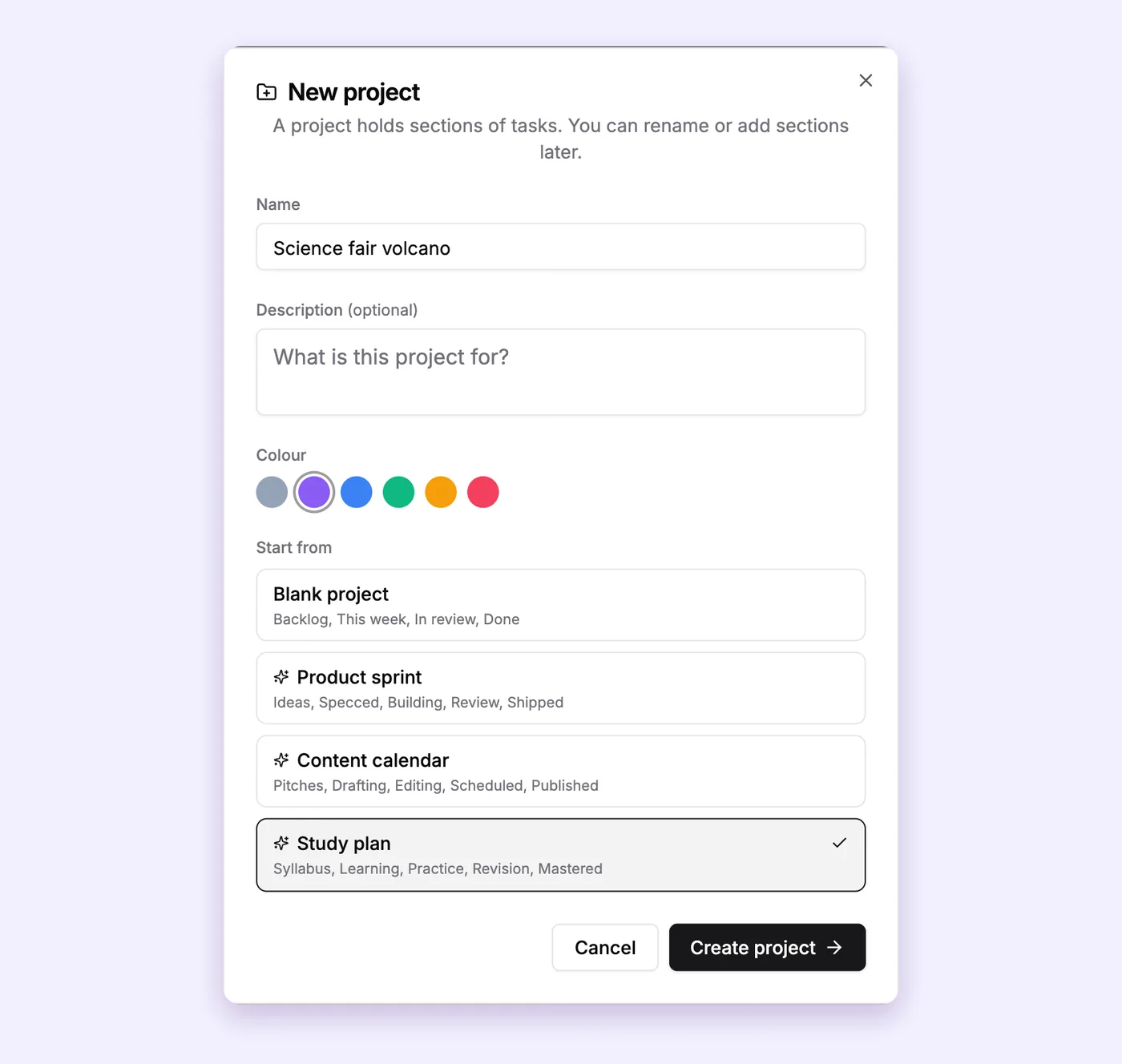
Pick a name, a color and a starting shape. You can rename or add sections later.
- Blank project: Backlog, This week, In review, Done. Good for almost anything.
- Product sprint: Ideas, Specced, Building, Review, Shipped.
- Content calendar: Pitches, Drafting, Editing, Scheduled, Published.
- Study plan: Syllabus, Learning, Practice, Revision, Mastered.
The study plan one is lovely for school. A kid building a science fair volcano can have "read about volcanoes" in Learning and "test the baking soda mix" in Practice, and watch the cards move all the way to Mastered. It works for grown up projects too, I promise.
The little things that make it feel fast
A tool you use every day should not make you wait or hunt. These are small, but they add up.
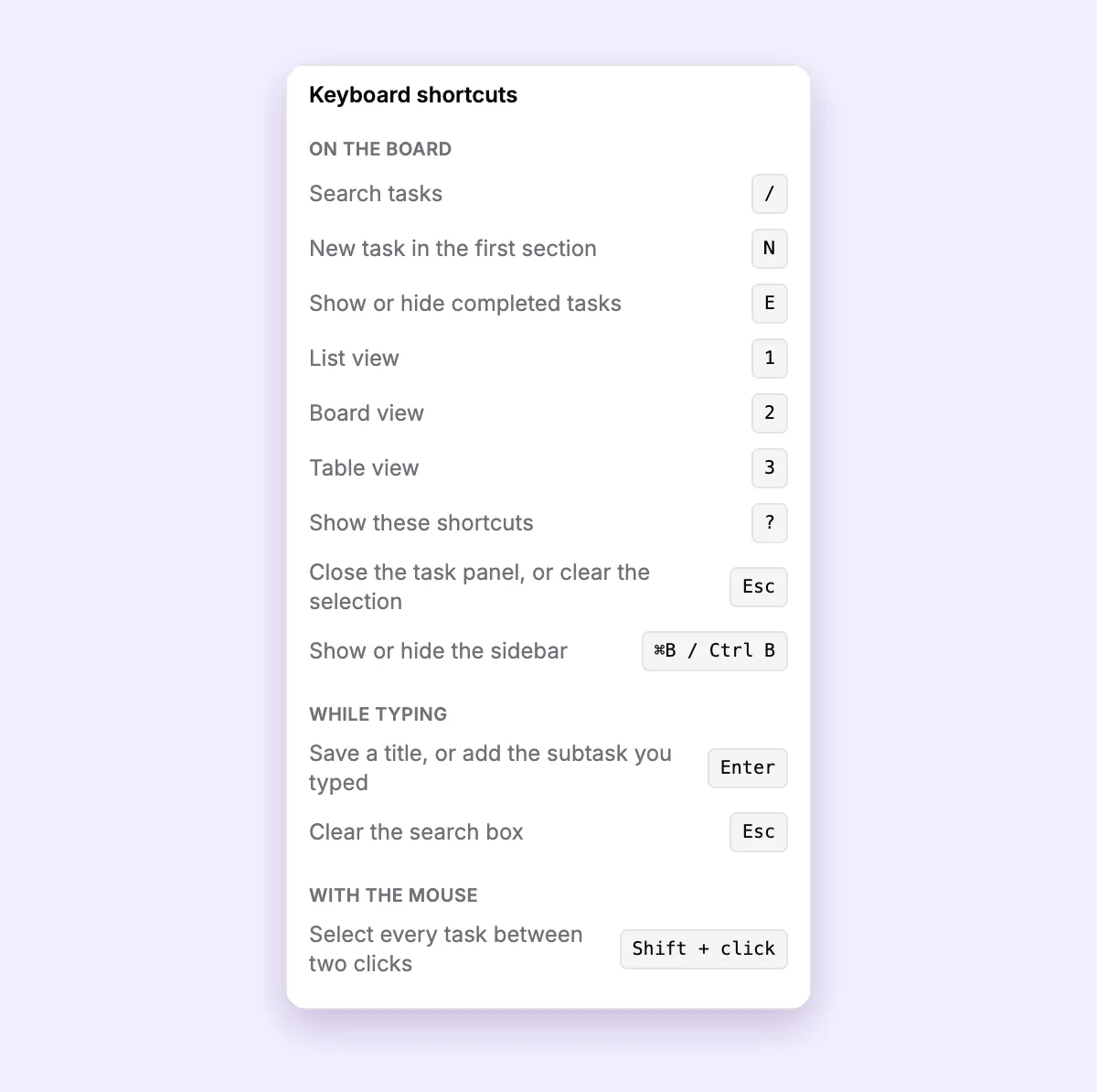
Press the question mark key on the board to see every shortcut.
- Keyboard shortcuts. N makes a new task, E shows or hides finished tasks, slash searches, and 1, 2, 3 switch views.
- Pick many at once. Hold Shift and click two tasks to select everything in between. Then change their status, priority, billing or section together, or move them all in one go.
- Drag and drop. Move cards between columns, or reorder rows in the list.
- Undo. Delete the wrong task and an undo button waits for you for a few seconds.
- Dark mode. For late nights, or just because it looks nice.
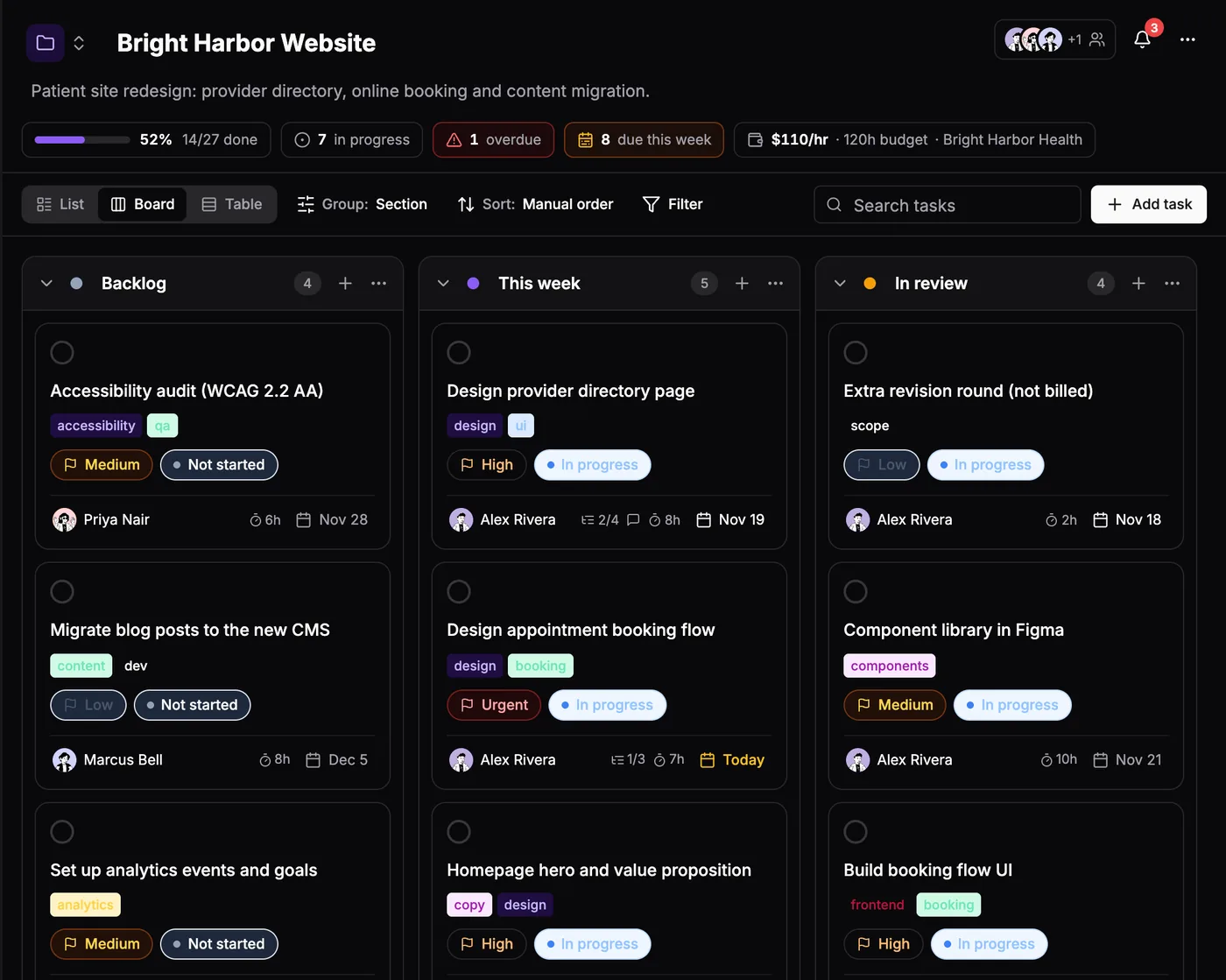
Same board, dark mode. Easier on the eyes after sunset.
Bring your team in when you need them
You can run the board alone forever. But when work needs more hands, you can invite people with a link.
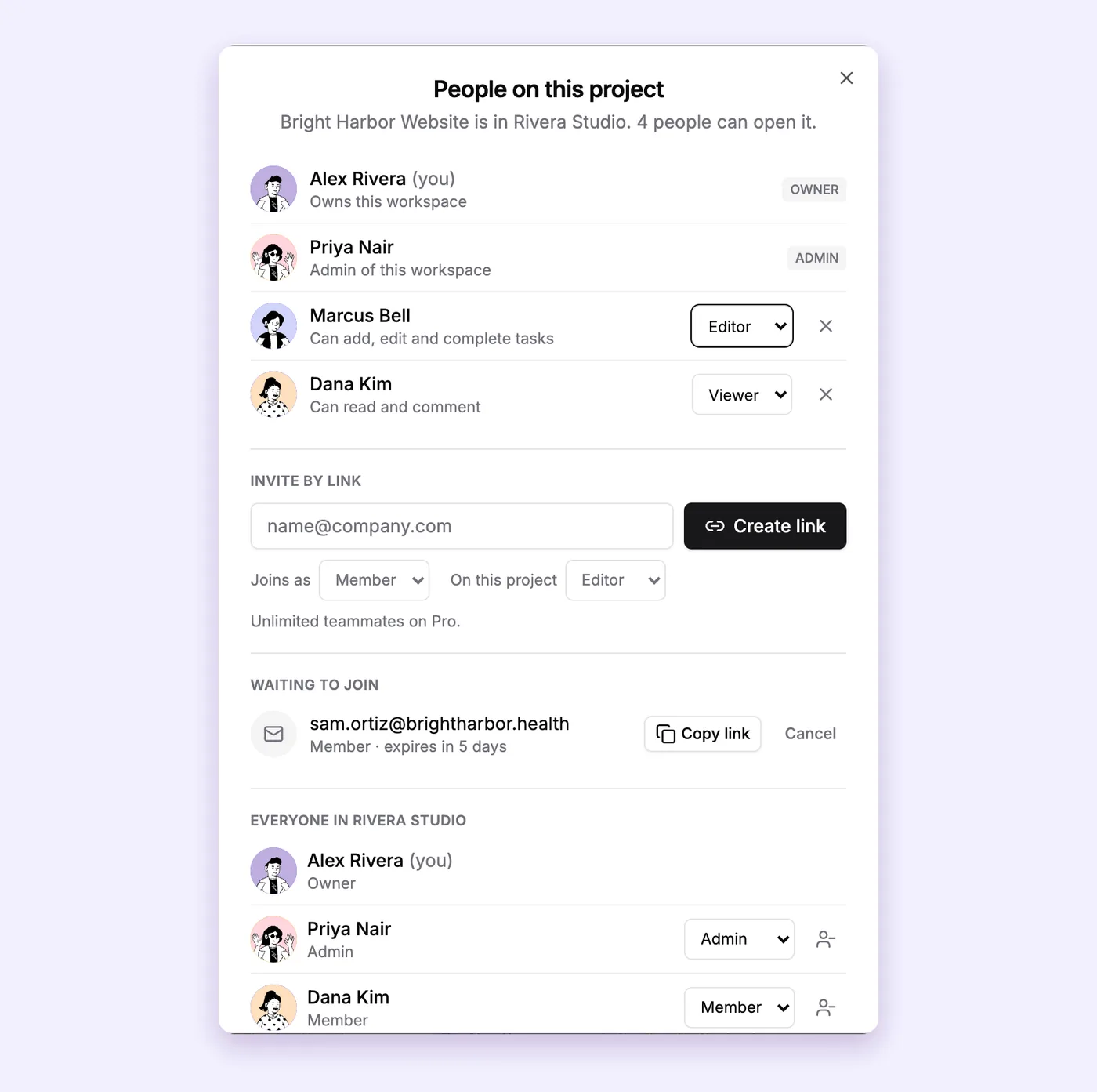
Decide who can edit and who can only read and comment, project by project.
There are two kinds of permission. In the workspace, someone is an owner, an admin or a member. On each project, someone is an editor (they can add, edit and finish tasks) or a viewer (they can read and comment). That viewer role is perfect for a client who wants to peek without moving your cards around.
Invite links expire on their own after seven days, so an old link lying around in your email can't be used forever. And when someone comments on a task, finishes one, or assigns you something, it shows up in the little bell at the top of the board.
One thing we care about a lot: money stays private. Rates, budgets and reports are only visible to the owner and admins, never to everyone on the project.
Share one task with anyone
Sometimes you just need to show one task to someone outside the team. Maybe it's a client, maybe a friend helping you out.
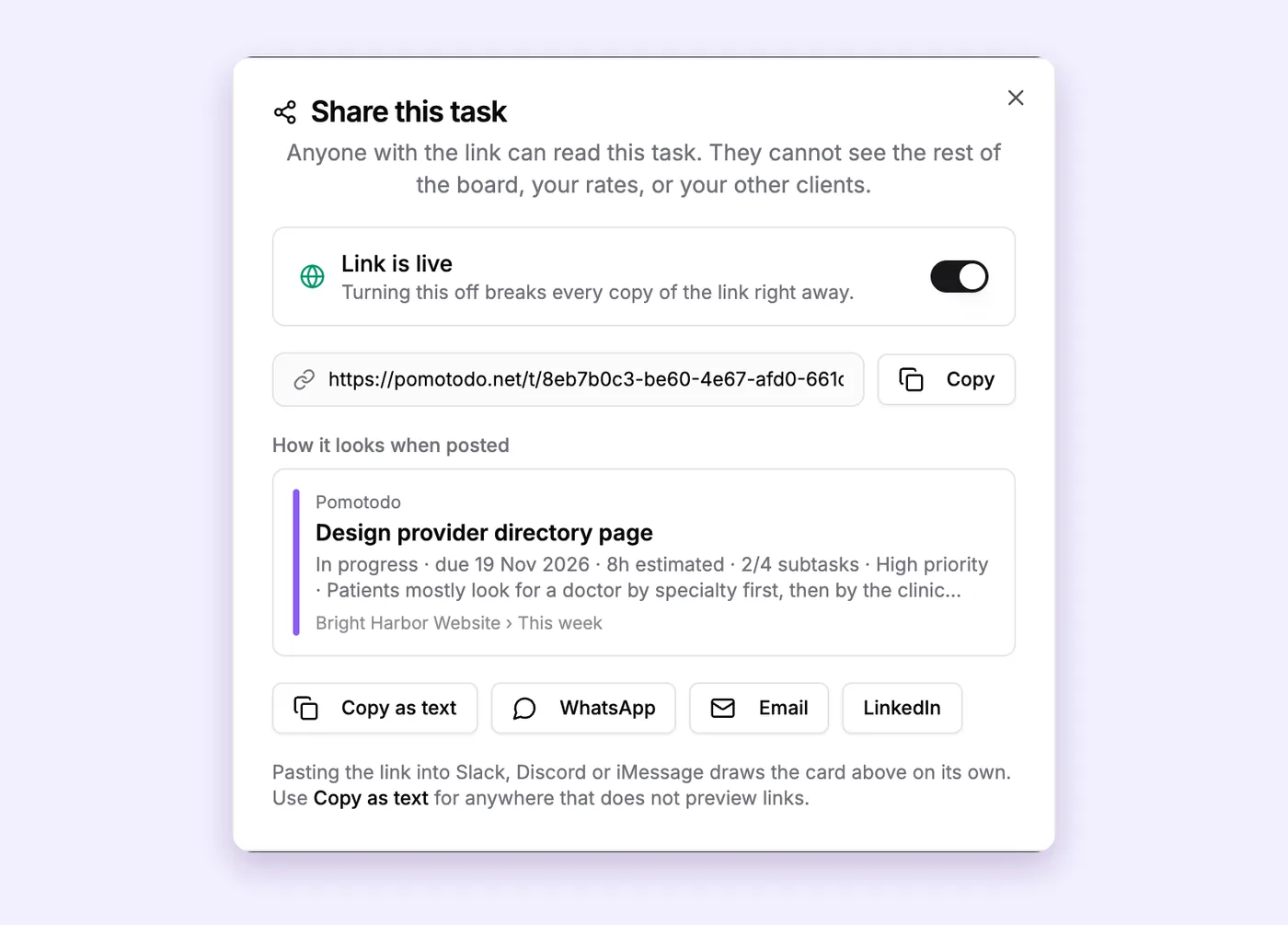
Turn on a public link for a single task. Paste it into Slack or iMessage and it shows a neat preview card.
Flip the switch and you get a link anyone can open without an account. They see that one task, its status, its subtasks and its description. They don't see the rest of the board, your rates or your other clients. Flip the switch off and the link stops working right away.
How the board fits with the rest of PomoTodo
The board is the middle of everything else in the dashboard. Here's how it connects:
- Click "Focus on this" and the Pomodoro timer runs on that task.
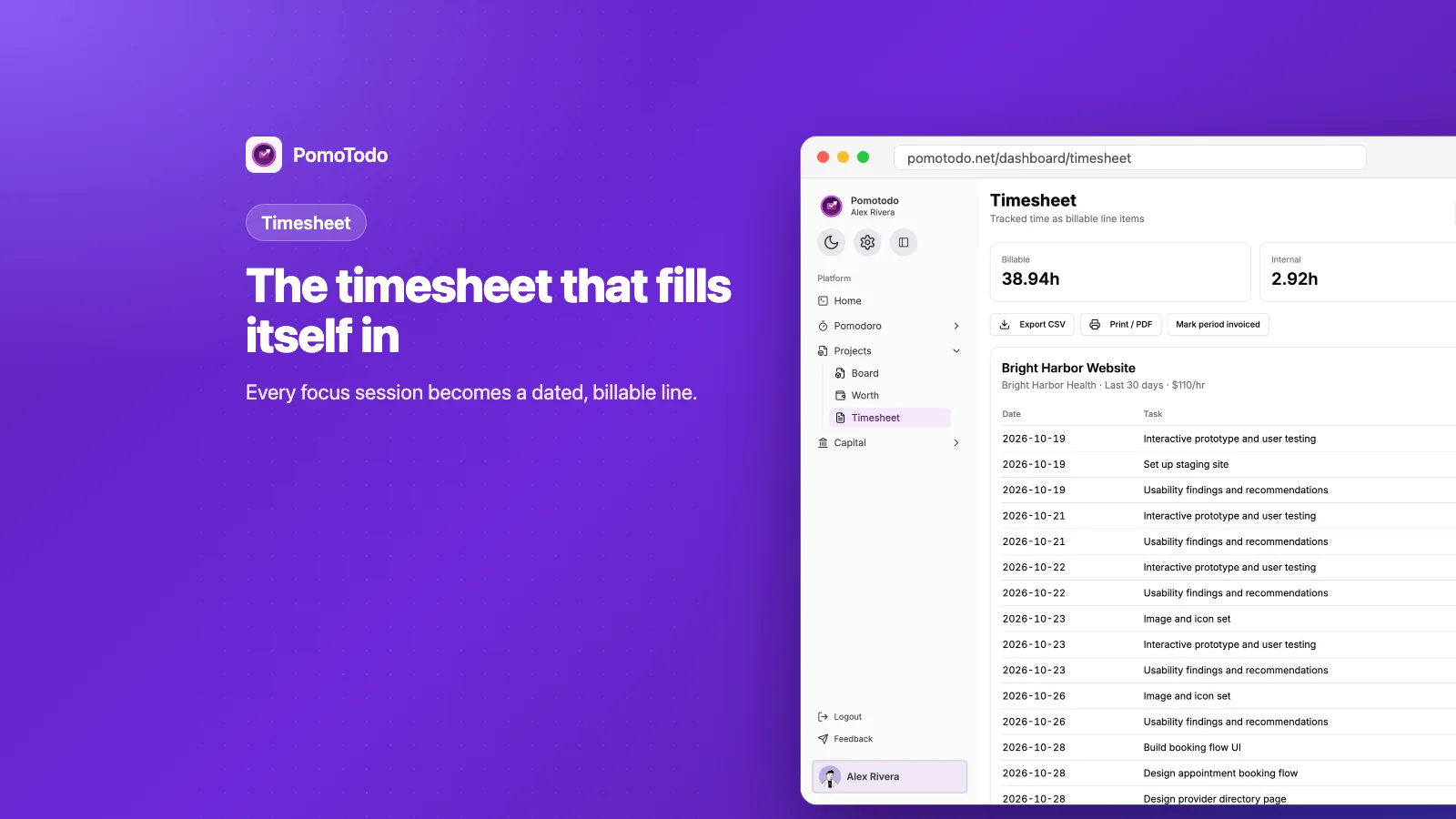
- Those focus sessions become lines in your timesheet without you typing anything.
- Set a rate and a budget on the project and the Worth report tells you what the time is worth.
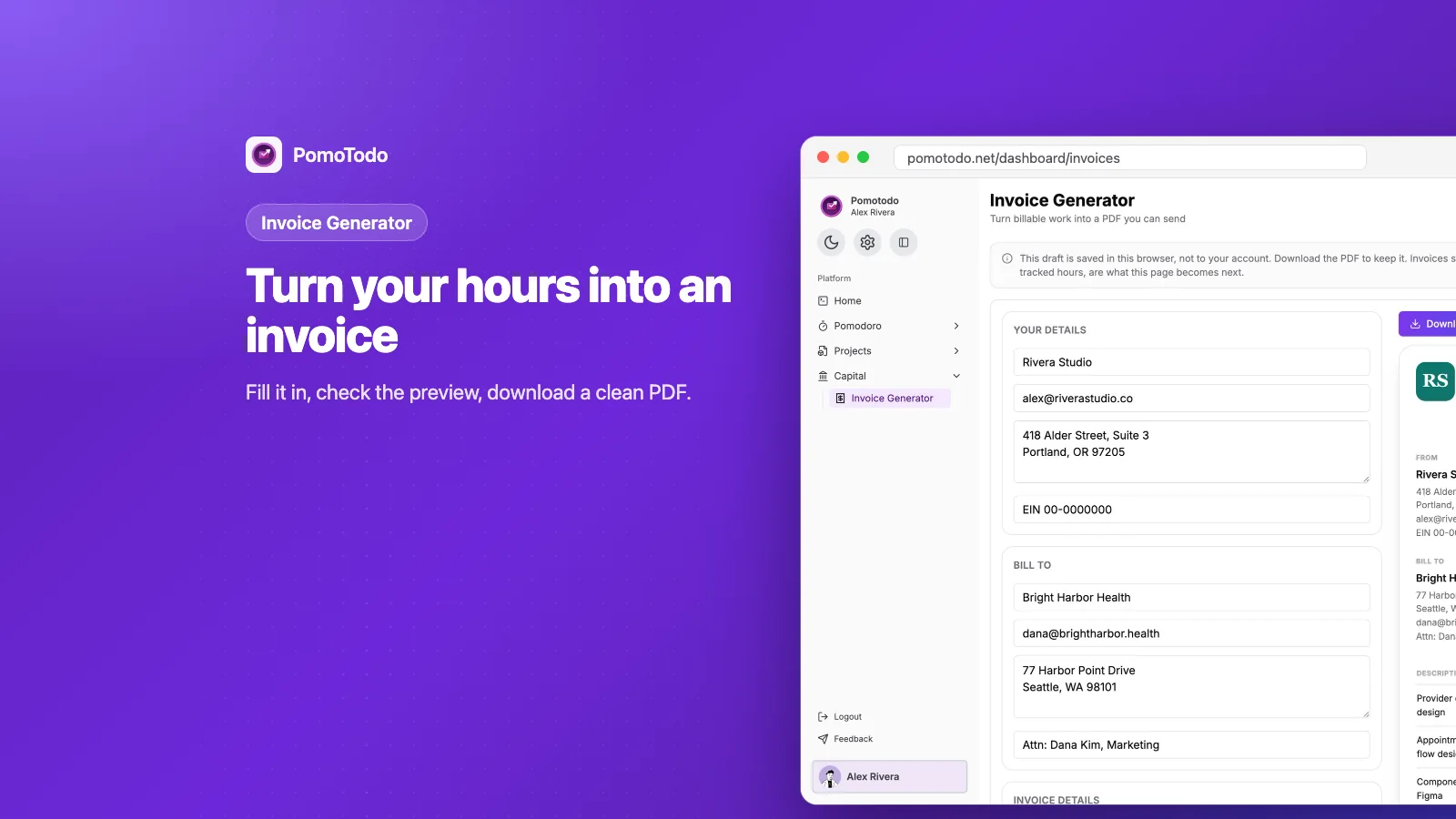
- When it's time to get paid, you can make an invoice in the same dashboard.
One thing it doesn't do: the board doesn't draw timelines. If you need dates laid out on a calendar style chart, our free Gantt chart maker does that part.
What is free and what is Pro
The board is free. That means all three views, grouping, filters, templates, shortcuts, subtasks, comments, sharing a task, and as many projects as you want. A free workspace can also include 3 teammates.
Pro is $12 a month or $99 a year. It removes the teammate limit and adds the money side: billable value, your effective hourly rate, longer history, and timesheet exports. If you never bill anyone, you may never need it, and that's completely fine.
FAQs
Is the PomoTodo Project Board free?
Yes. The board, its list, board and table views, templates and task sharing are all free, with no card needed to sign up. Free workspaces include up to 3 teammates.
Is the PomoTodo Project Board a kanban board app?
It's a kanban board when you want one. Board view gives you columns and drag and drop. You can also switch the same project into a list or a table whenever columns aren't the right shape for the job.
Can I use it for school or personal projects?
Absolutely. The Study plan template was made for exactly that, and the board works just as well for a house move, a job hunt or a side project. You don't need a team or a client to get value out of it.
Can my team work on the same project at the same time?
Yes. Invite people with a link and choose if they can edit or only view and comment. When someone moves or changes a task, everyone on the project sees the update.
How is this different from a to do list app?
A to do list tells you what to do. The board also shows stages, owners, estimates and deadlines, and it connects to a focus timer and your hours. If you want the longer answer, read task management vs project management.
Give it ten minutes
Make one project, drop in the things already on your mind, and switch between the three views. You'll know pretty fast which one feels like home.
When you're ready, you can try the free project management tool and see if it sticks.
And if you're juggling a few projects at once, this guide on how to manage multiple projects pairs nicely with it.