
Summary
- A kanban board turns a project into columns of cards, so you can see what is waiting, what is moving, and what is finished without opening anything.
- Most teams do not need a complicated board. Three or four columns and honest cards will do more than a wall of custom fields.
- Boards are great for flow and terrible for planning a whole project at once, which is why the best tools let you switch between a board and a list.
- PomoTodo gives you a free project management board with list, board and table views, plus a Pomodoro timer in the same place so you can actually start the work.
Think of a project like a kitchen during a dinner service. Orders come in, dishes get started, some sit under the pass waiting on one last thing, and plates go out. Nobody in that kitchen is reading a spreadsheet. They glance at the rail, see where everything is, and move.
That glance is what a kanban board project management setup is trying to give you. Instead of a document you have to read, you get a picture you can take in. Cards sit in columns, columns represent stages, and a card moves right as the work moves forward.
It is a simple idea, and it is old. Kanban started on a Toyota factory floor as a way to signal what should be worked on next. The version most of us use now, cards on a screen in columns, is a direct descendant of index cards pinned to a wall.
This guide covers what a kanban board actually does for a project, how to set one up without overbuilding it, and when a visual board helps you versus when it quietly gets in your way.
What Is a Kanban Board in Project Management?
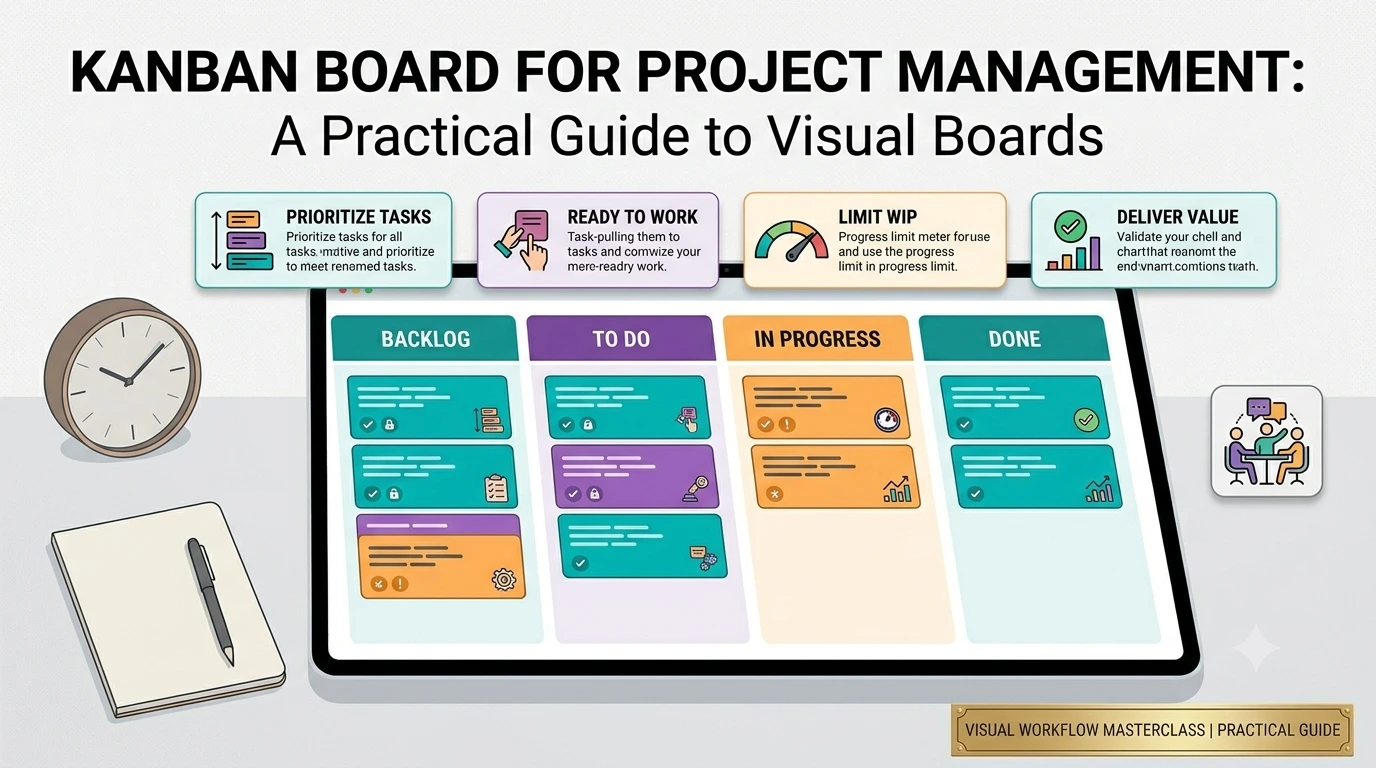
A kanban board is a visual layout of your project where each task is a card and each column is a stage that work passes through.
The classic setup is three columns: To do, In progress, Done. A task starts on the left, you drag it right as it progresses, and it lands in Done. That is the whole mechanic.
What makes it useful is not the dragging. It is that the shape of the board tells you something before you read a single word. A column stacked high with cards is a bottleneck. An empty middle column means nothing is moving. A Done column that has not grown all week is a conversation waiting to happen.
A project management kanban board is the same idea applied to a defined piece of work with a start and an end, like a launch, a client deliverable, or a website rebuild. Rather than tracking a permanent flow of incoming requests, you are watching one project move from beginning to finished.
What a Good Project Management Board Actually Shows You
A board earns its place when a card can answer four questions on sight. If you have to open a card to know these things, the board is decoration.
- What is this?
- Who has it?
- When is it due?
- How urgent is it?
That is it. Title, owner, date, priority. Everything else, the description, the subtasks, the comment thread, the estimate, lives inside the card where it belongs.
This is where a lot of boards go wrong. Someone adds six custom fields in month one because the tool lets them, and by month three the cards are so dense that nobody reads them. A card should be scannable in about a second. If it is not, trim it.
Pro tip: if your team keeps asking "what is the status of X" in chat, your board is not answering the four questions well enough. That is a board problem, not a communication problem.
Kanban Board vs List View: Pick the Shape, Not the Religion
Here is something most project management advice skips. A board is not universally better than a list. They are good at different jobs, and the useful skill is knowing which one you need right now.
A board is better for flow
When work is already planned and your question is "where is everything," a board wins. You see movement. You see pile ups. You see the thing that has been sitting in review for nine days. Dragging a card from one column to the next is a satisfying, low friction way to update status, which means people actually do it.
Boards shine mid project, in standups, and any time you want to answer "what is stuck" in about three seconds.
A list is better for planning
When you are sitting down to plan a week, a board fights you. Columns are laid out side by side, which means you scroll horizontally, and you can only comfortably see a few columns at a time. Reading a whole project takes effort.
A list stacks everything down the page. You read top to bottom, the way you read anything else. You can see forty tasks at once instead of twelve. And on a phone, a list is dramatically easier to use than a board, because phones are tall, not wide.
The honest answer is you want both
This is exactly why the project management tool in PomoTodo does not force a choice. The same project renders as a list when you are planning and as a board when you want columns. Same sections, same tasks, same data, different shape. The switch sits in the toolbar above your tasks, and each project remembers the view you left it in.
You are choosing a viewing angle, not committing to a methodology.
How to Set Up a Kanban Board for Project Management
Setting up a board takes about two minutes. Most people spend two hours instead, because they try to design the perfect workflow before putting a single real task on it. Do it the other way round.
Step 1: Start with the stages you already have
Do not invent a workflow. Write down the stages your work genuinely passes through right now, even if they are messy. For most people it is some version of not started, doing, waiting on someone, done.
Three or four columns is the sweet spot. If you are reaching for a seventh column in your first hour, you are designing a process rather than tracking work.
Step 2: Put real tasks on it immediately
Empty boards teach you nothing. Dump in everything you are actually working on, titles only. No dates, no owners, no tags yet. You want to see the real shape of the project before you decorate it.
In PomoTodo every section has an add a task line at the bottom that stays focused after you press enter, so you can empty your head in one pass instead of opening a form fourteen times.
Step 3: Add owners and dates to the ones that need them
Now go back and add detail, but only where it matters. The task with a hard deadline gets a date. The task someone else is doing gets an owner. The task that will sink the launch gets marked urgent.
A task with only a title is a perfectly good task. Fields are there to serve you, not to be filled in.
Step 4: Move cards as work actually moves
This is the part that decides whether the board survives. A board that is updated once a week is a lie you look at for six days. Move the card when the work moves, not at the end of the sprint.
The lower the friction, the more likely this happens, which is why drag and drop matters more than it sounds like it should.
Step 5: Look at the shape once a week
Once a week, do not read the cards. Just look at the board. Which column is fattest? What has not moved? Is Done growing? The shape will tell you where the problem is faster than any status report.
Column Setups That Actually Work
You do not need a bespoke workflow. Here are four that cover most real situations.
The default
Backlog, This week, In review, Done. Good for almost everyone. Backlog is everything eventually. This week is your commitment. In review catches work that is technically finished but waiting on someone. Done is done.
Client work
Not started, In progress, Waiting on client, Approved. The waiting on client column is the whole point. It separates "I am late" from "they are late," which is the single most useful distinction in freelance work.
Content or creative
Ideas, Drafting, Editing, Scheduled, Published. Creative work has real handoff stages, and a card sitting in Editing for two weeks is visible in a way it never is in a document.
Study or research
To read, Reading, Notes taken, Written up. Turns a vague reading list into something with observable progress, which is the thing that keeps you going.
Whatever you pick, name columns after states, not people or dates. "In review" is a state. "Maya" is not a state, it is a filter, and most decent tools let you group by assignee anyway.
Where Visual Boards Quietly Go Wrong
Boards fail in predictable ways. Watching for these is most of the battle.
Too many columns. Every column you add makes the board harder to read and creates another place for work to hide. If a column has held the same two cards for a month, it is not a stage, it is a graveyard.
The board becomes the work. If you are spending real time renaming columns, reordering cards for tidiness, and adding fields nobody fills in, the tool has become the project. The board is supposed to cost you seconds a day.
Cards with no owner. An unowned card is a wish. When everything is technically the team's responsibility, nothing is anyone's. Even solo, assigning yourself makes it feel decided.
A Done column nobody clears. After a few months Done becomes an unreadable wall of finished cards and the board loads slowly. Archive periodically, or use sections you can collapse.
Using a board when you needed a list. If you find yourself scrolling sideways and squinting to understand your own project, stop. Switch to a list, plan, then go back to the board to execute.
Spotlight: The Free Project Management Board in PomoTodo
Most project tools ask you to manage the tool. You open the app to check what is due this week, and twenty minutes later you have renamed a column, dragged four cards around, added a custom field nobody will ever fill in, and you still could not say out loud what is actually late.
PomoTodo's project management tool is built the other way round. A project is a list of sections. A section is a list of tasks. A task shows everything about itself on one line.
Here is what you get, and it is free with no card at signup.
- A board view and a list view of the same project. Sections become columns, tasks become cards you drag between them. Switch back to the list whenever you want to read the whole thing top to bottom.
- A table view for planning and review. Every task becomes a sortable row. Sort by due date to build tomorrow morning in order, or by priority before a status meeting. The cells are live, so you can change a status straight from the grid.
- Five ways to group the same project. Group by section to plan, by assignee to see who is carrying too much, by due date to pull this week to the top, by priority when something has caught fire, or by status to find what is stuck. Grouping rearranges the view, never the data.
- Cards that carry their own detail. Open a task and you get owner, due date, status, priority, a time estimate, tags, a description, subtasks with a progress bar, and a comment thread. Everything saves as you type.
- Bulk actions. Select a run of tasks and set their status, priority, or section in one go. This is the difference between tidying a project at the end of a sprint and putting it off for another week.
- Undo on delete. Delete the wrong card and an undo button waits in the corner for a few seconds.
Two things worth being straight about. Sharing and invites are not switched on yet, so today this is a single player tool that was designed for teams from the start, with roles, assignees and task level comments already built in. And a dedicated kanban view with its own workflow rules is on the way as a separate view. The board you have now gives you columns and drag and drop, which for most people is all the kanban they actually want.
If you are tracking a to do list rather than a full project, the task management side of PomoTodo is the lighter place to start.
The Part Most Boards Are Missing
Here is the thing nobody says about project management boards. They help you decide what to work on and then leave you completely alone at the moment you have to actually do it.
You finish planning, the board looks beautiful, and now you are staring at a card called "Ship the pricing page rewrite" with no more help available. The plan is done. The work has not started.
PomoTodo sits next to a Pomodoro timer for exactly this reason. Once you have picked the card, the timer to work on it with is one click away, in the same app. Better still, you estimate a task in hours and the board shows it back to you as a number of pomodoros. Type 3h and it tells you that is roughly seven focus sessions.
That small translation is what keeps a plan honest. A week that looked reasonable as a column of cards looks very different when the app tells you it is forty two pomodoros and you only have twenty five in the week.
FAQs
What is a kanban board in project management?
It is a visual layout where each task is a card and each column is a stage of work, usually something like to do, in progress and done. You drag cards from left to right as work progresses, so the state of the whole project is visible at a glance instead of buried in a document.
Is a kanban board better than a list for managing projects?
Neither is better, they are good at different jobs. A board is better when work is already planned and you want to see flow and bottlenecks. A list is better for planning a week, reading a whole project top to bottom, and working on a phone. Tools like PomoTodo let you switch between both views of the same project, which is the practical answer.
How many columns should a project management board have?
Three or four for most projects. Backlog, This week, In review and Done covers the majority of real work. Add a column only when work genuinely stalls at a stage you cannot currently see. Extra columns make a board harder to read and give work more places to hide.
Can I use a kanban board for personal projects?
Yes, and it is one of the best uses for it. A side project, a dissertation, a house move or a job search all have stages, and seeing them as columns makes progress visible in a way a notes app never does. Assign the cards to yourself, it makes them feel decided rather than optional.
Is there a free project management board?
Yes. PomoTodo's project board is free to use with no credit card at signup and no trial countdown, and it includes list, board and table views plus a built in Pomodoro timer. You can create as many projects as you need.
What is the difference between a kanban board and a project management visual board?
In everyday use they describe the same thing, a project laid out as cards in columns. Kanban is the specific method it came from, with its own conventions around limiting work in progress and pulling work through stages. Most people saying "visual board" just mean they want to see their project instead of reading it.
Give Your Project a Shape You Can Read
A project management board is not a methodology you have to adopt. It is a viewing angle. When work is moving and you want to see where everything is, columns are the right shape. When you are planning the week, a list is. The trick is having both without switching apps.
Create a free project board in PomoTodo, drop in the work you are already carrying, and let the board tell you what is due instead of finding out the hard way.
Just tracking a to do list for now? Start with task management instead and grow into projects when you need them.