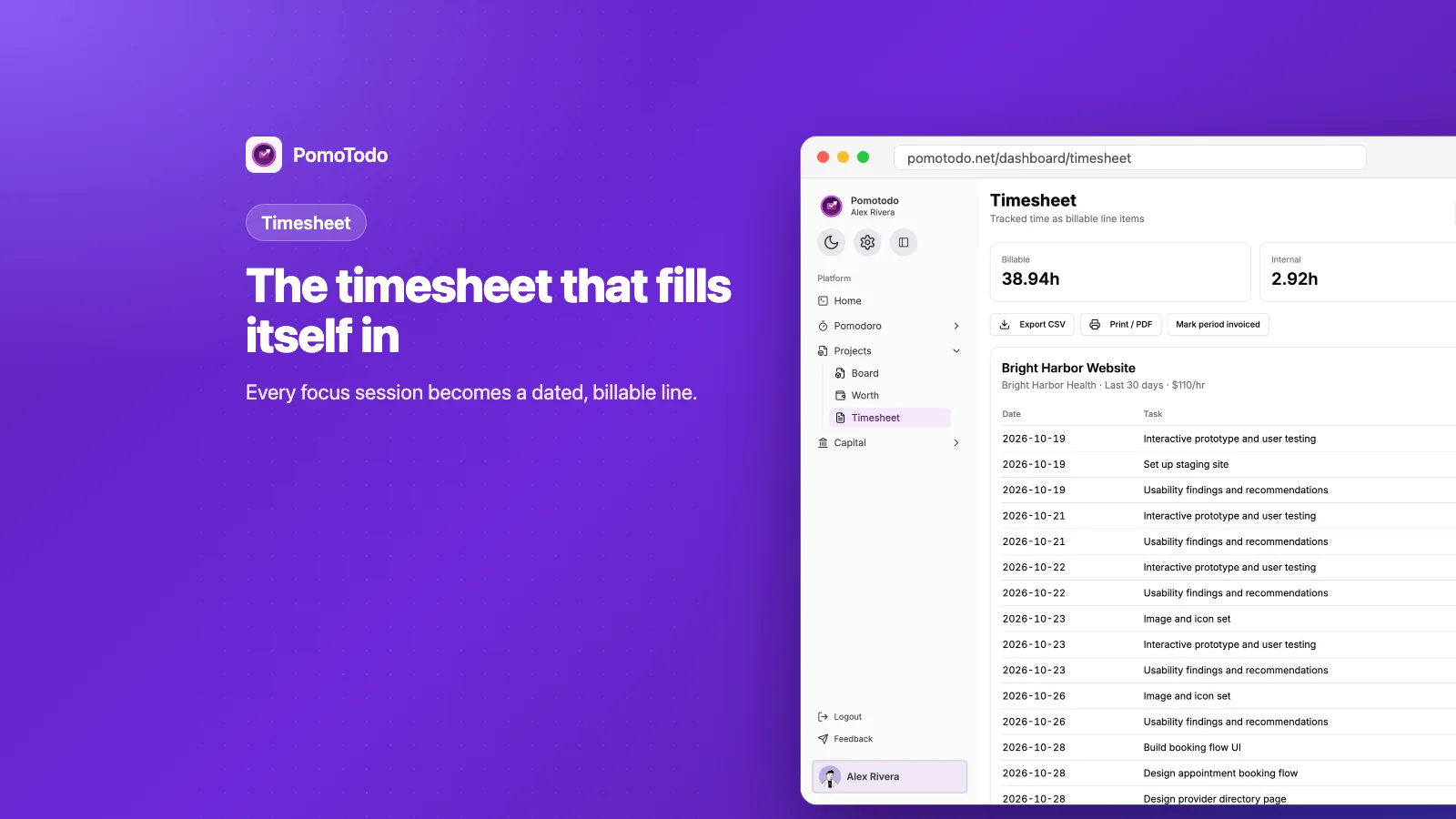

The short version
- Billable hours are the hours you can charge a client for. Everything else (admin, emails, redoing your own mistakes) is internal.
- In PomoTodo you don't fill in a timesheet. You pick a task, run the focus timer, and the timesheet writes itself.
- You can add time the timer missed, export the sheet for a client, and mark a period as invoiced so the same hours are never billed twice.
Lots of freelancers know this Friday evening ritual. Open a blank spreadsheet, squint at the calendar, and try to remember what happened on Tuesday. Most people guess low. Every week an hour or two slips away, simply because there's no proof it was worked.
The PomoTodo timesheet exists so you never have to do that. This post explains what billable hours are, how the timesheet collects them for you, and the few small habits that keep the numbers right.
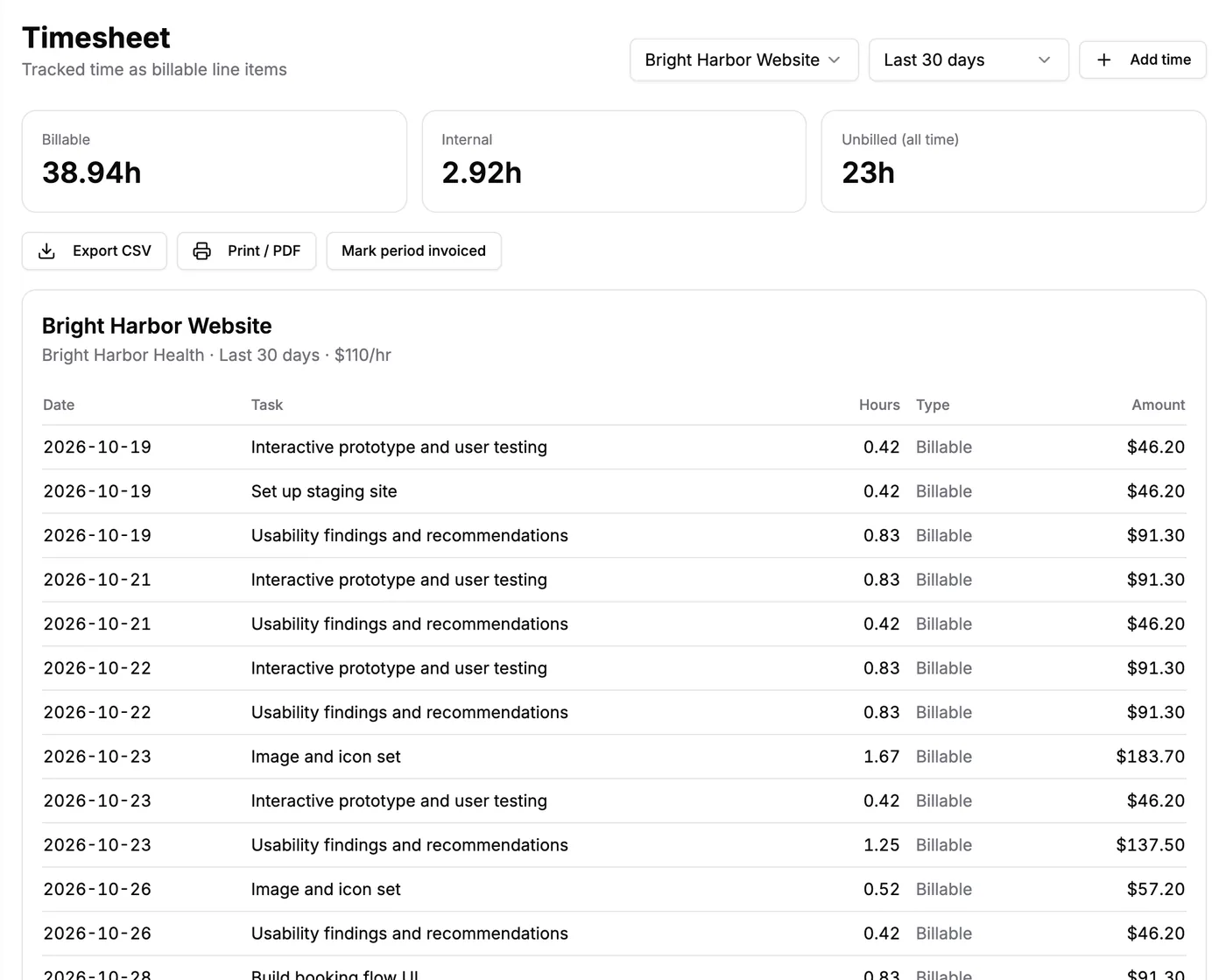
A month of client work. Nobody typed these lines in. They came from focus sessions.
What are billable hours?
Billable hours are the hours of work you can send a bill for. If a client pays you $110 an hour and you spent 3 hours designing their booking page, that is 3 billable hours, or $330.
Non billable hours are everything else you do to keep things running. Writing proposals, fixing your own typo, updating your portfolio. That work matters, but nobody pays you for it directly. PomoTodo calls those hours internal.
Keeping the two apart is the whole game. Mix them up one way and you bill a client for your admin. Mix them up the other way and you work for free.
How the timesheet builds itself
The idea is simple. Every focus session you finish is saved against the task you were working on. That task belongs to a project. That project has a price. Put those together and you have a timesheet line: a date, a task, some hours, and an amount.
So the setup is really just three things. Price the project, mark which tasks are billable, and pick the task before you start the timer. Let me show you each one.
1. Put a price on the project
Open the project on the project board, click the three dots at the top right and choose "Billing & budget". Once a project has a price, you can also click the price chip under its name.
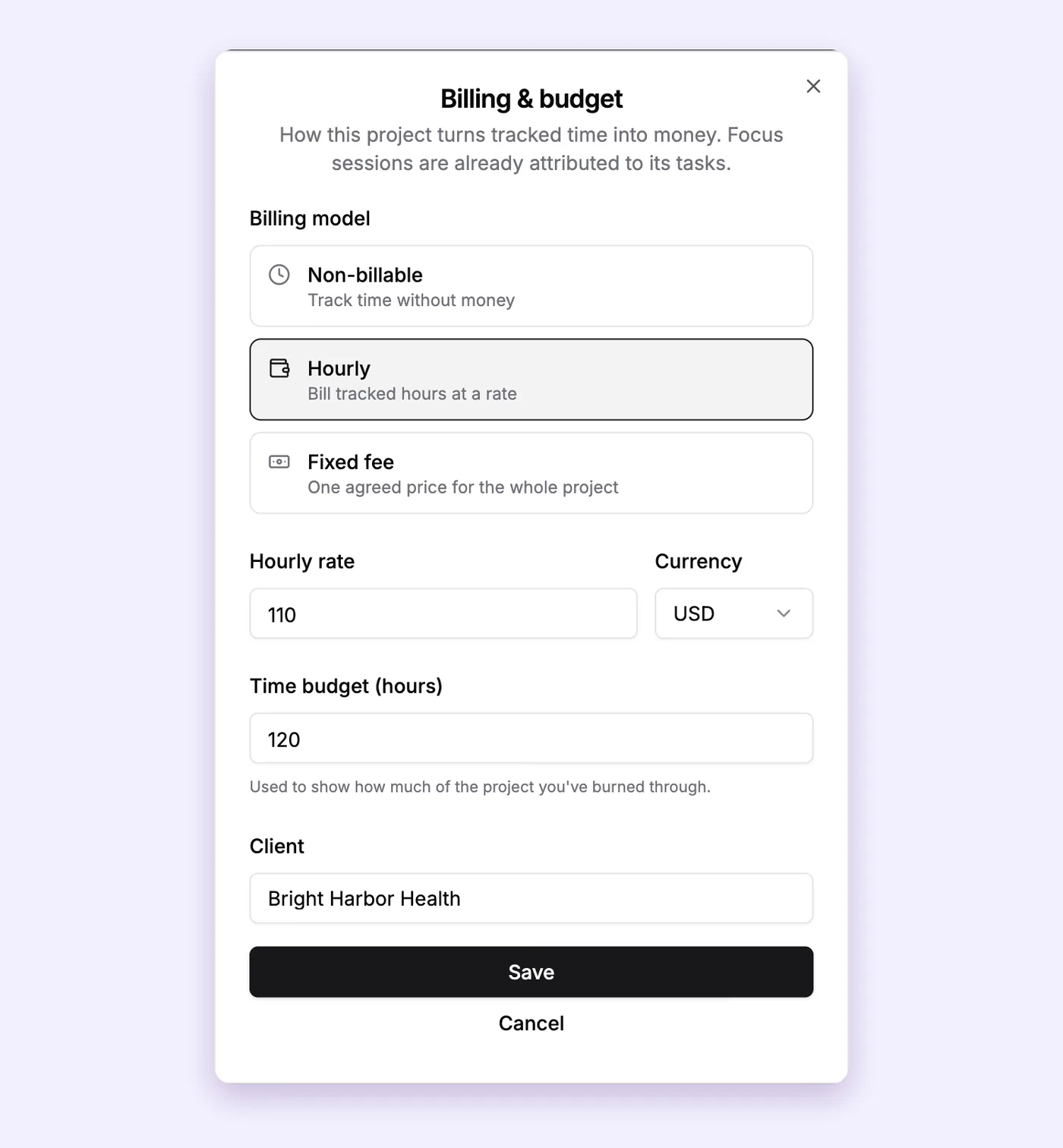
Choose hourly or a fixed fee, set the rate and currency, and add a time budget if you have one.
You have three choices. Track time with no money at all, bill by the hour, or charge one fixed fee for the whole project. For hourly work you set the rate and the currency. You can also add a time budget (like 120 hours) and the client's name.
2. Mark the tasks you can bill
Here's a detail we thought hard about. On a priced project, a new task starts as internal. You switch it to billable on purpose, right in the task panel.

The billable switch on a task. On means it counts toward what the client owes.
Why start at internal? Because billing a client for your own admin is the kind of mistake the client finds before you do. Forgetting to mark a task billable is easy to spot and fix. Overcharging quietly is not. So the safe choice is the default.
Internal hours still count in your reports, by the way. They show you where your time really went, and they lower your real hourly rate the way they should.
3. Pick the task before you press start
When you open the Pomodoro timer, there's a little task picker above the clock. Search for the task, pick it, and press start.
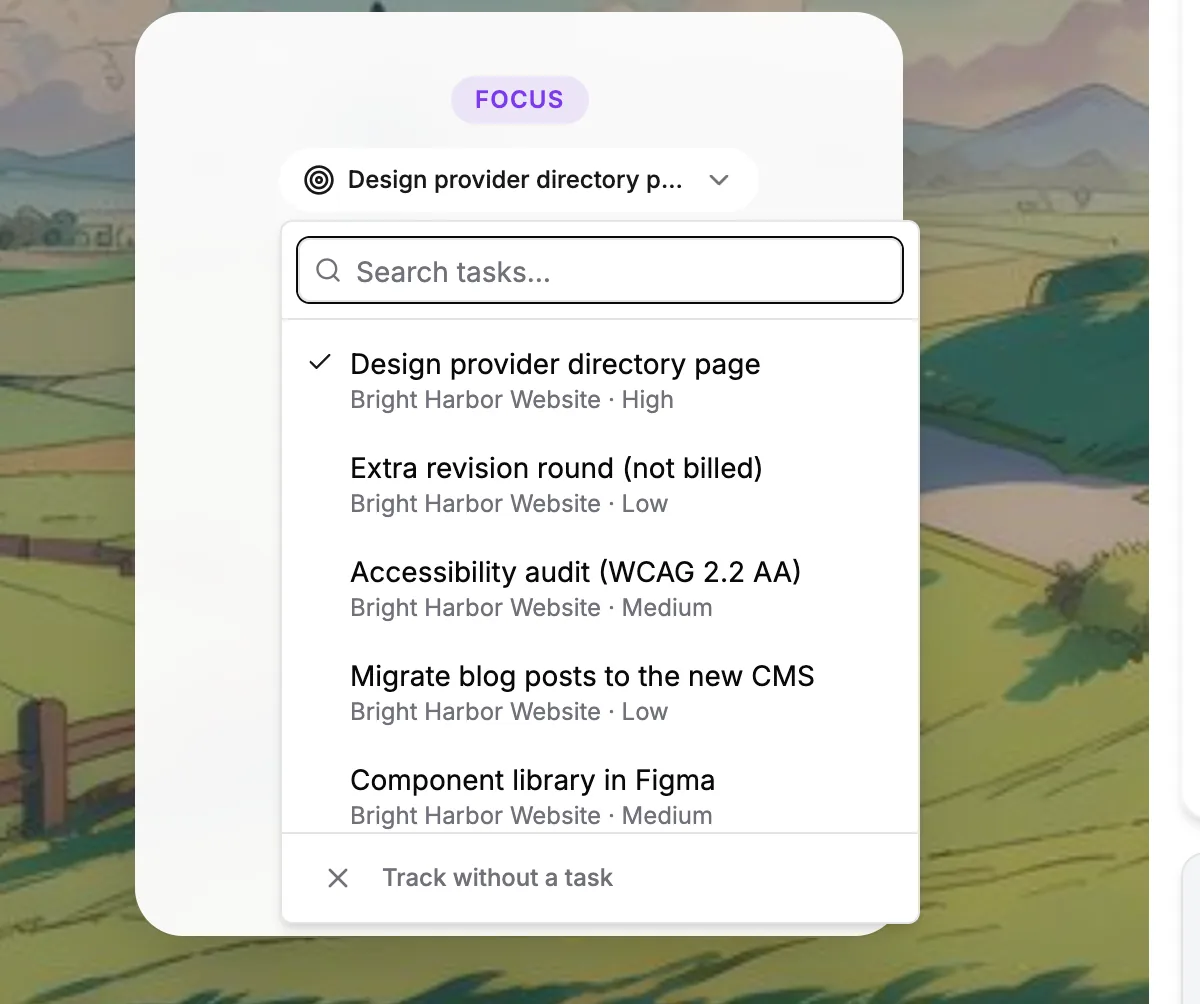
Pick the task once. Every session after that lands in the right place.
There's an even faster way. Open any task on the board and press "Focus on this". The timer opens with that task already picked. The Pomodoro timer guide covers the timer itself in more detail.
How to read your timesheet
Open Timesheet under Projects in the sidebar. Pick a project and a date range at the top.
The three boxes up top tell you the story at a glance:
- Billable is how many billable hours you tracked in that range.
- Internal is the time you spent on the project that you won't bill.
- Unbilled (all time) is billable time you have not marked as invoiced yet. This one ignores the date range on purpose, because money you're owed doesn't stop being owed when you change a filter.
Below that is the sheet itself. Each line has a date, the task, the hours, whether it's billable or internal, and the amount for hourly projects.
You'll notice the hours are decimals. A 25 minute Pomodoro shows up as 0.42 hours. That's how most timesheets and invoices like it. If you ever need to convert time by hand, here's a minutes to decimal hours chart that does it in a second.
Add time the timer never caught
Not all work happens with a timer running. Client calls, meetings, a quick review on your phone. For those, press Add time.
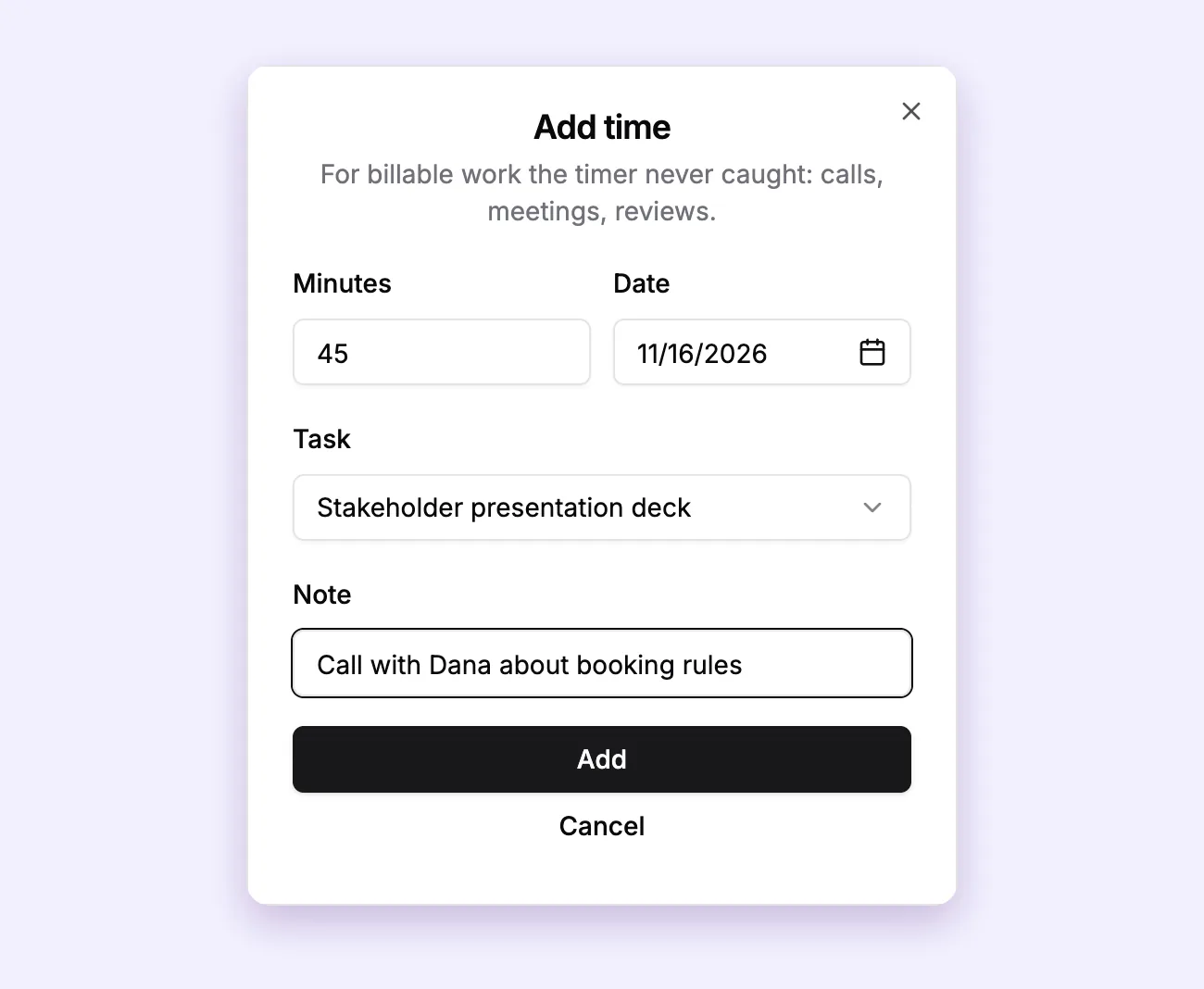
Enter the minutes, the day, the task and a short note. It joins the sheet like any other session.
Type the minutes, pick the date and the task, and add a note like "Call with Dana about booking rules". The note shows on the timesheet line, so the client can see what that time was.
Export it for your client
When a client asks for the hours behind an invoice, you have two buttons:
- Export CSV gives you a file you can open in Excel or Google Sheets.
- Print / PDF gives you a clean printed sheet, or a PDF if you choose "Save as PDF" in the print window.
Some clients want to see a timesheet before they pay. Now it takes one click instead of one evening.
Mark a period invoiced, so you never bill twice
After you send the invoice, press Mark period invoiced. Choose the dates and add a reference, like your invoice number.
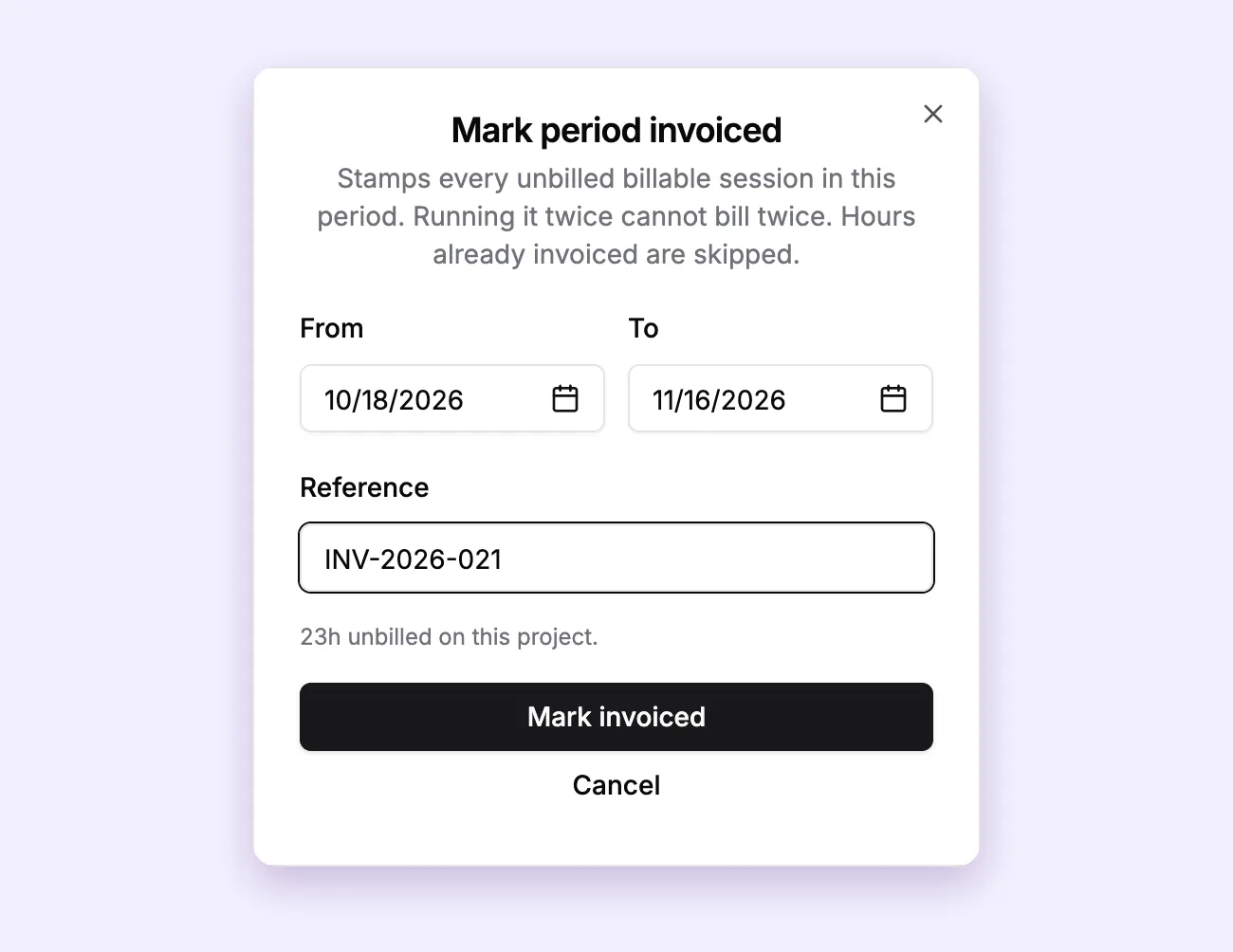
Stamp the period with your invoice number. Hours that were already invoiced are skipped, so running it twice can't bill twice.
Every unbilled, billable session in those dates gets stamped with that invoice. The unbilled total drops to match. And the period shows up in a list at the bottom of the page.
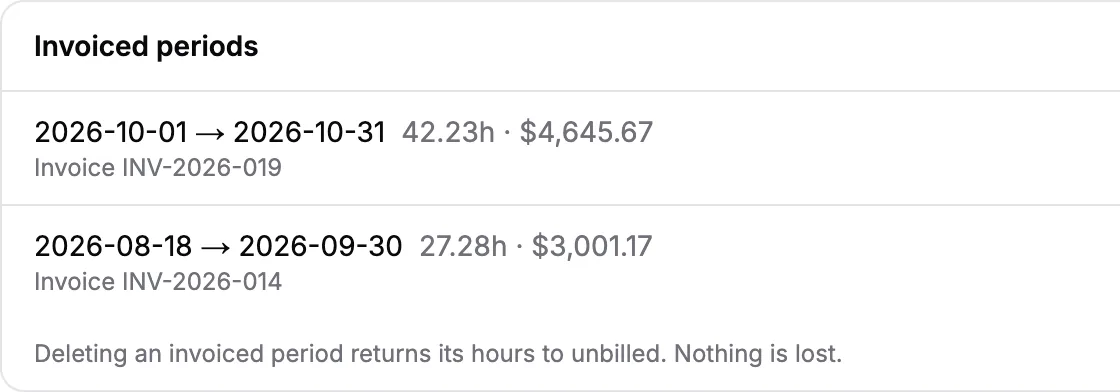
Every period you billed, with its hours, amount and reference. Delete one and those hours go back to unbilled. Nothing is lost.
Made a mistake? Delete the period and its hours return to unbilled. Nothing disappears.
When you're ready to write the invoice itself, here's how to make an invoice in the same dashboard.
Who can see the timesheet?
Only the project owner and admins. Teammates who just work on tasks never see rates, amounts or timesheets. They see the board and their own work, and that's it.
A simple weekly routine
This takes about five minutes on a Friday:
- Open the timesheet and pick the client project.
- Add any calls or meetings the timer missed.
- Scan for anything marked internal that should be billable, or the other way round.
- If it's invoice day, export the sheet and send the invoice.
- Mark the period invoiced.
That's the whole routine. No memory games.
What is free and what is Pro
On the free plan you can see the last 7 or 30 days of your timesheet and add time by hand. Pro ($12 a month or $99 a year) adds the unbilled total, CSV and PDF exports, marking periods invoiced, and longer ranges like 90 days, 12 months or all time.
Other free tools that help
If you aren't ready for the dashboard yet, these work right in your browser:
- A billable hours calculator for rates per client and invoice totals.
- A free timesheet template you can print or open in Excel.
- A time card calculator for clock in and clock out times with breaks.
- A simple time tracker that needs no account.
FAQs
What counts as billable hours?
Any time spent directly on work a client agreed to pay for. Design, writing, coding, client calls and meetings about the project usually count. Your own admin, sales and fixing your own mistakes usually do not.
How do I track billable hours as a freelancer?
Use a timer that saves each session against a client task, then review the list every week. In PomoTodo, pick the task in the Pomodoro timer and the timesheet fills itself in, by date and by task.
What is the difference between billable and non billable hours?
Billable hours go on the invoice. Non billable hours are still work, but nobody pays for them directly. Tracking both shows you how much of your week actually earns money.
How do I convert minutes to decimal hours on a timesheet?
Divide the minutes by 60. So 25 minutes is 0.42 hours and 45 minutes is 0.75 hours. The PomoTodo timesheet does this for you automatically.
Can I add time I forgot to track?
Yes. Press "Add time" on the timesheet and enter the minutes, the date, the task and a note. It appears on the sheet like any other session.
Stop rebuilding your week from memory
The best timesheet is the one you never have to fill in. Price the project once, mark the billable tasks, and let the timer do the writing.
Then, if you want to see whether all those hours were actually worth it, the Worth report is the natural next step.